
Have a PDF with unwanted pages — blank pages, cover sheets, or irrelevant sections you don't need to share? Removing specific pages from a PDF is quick and easy when you use the right tool. In this guide, we'll show you exactly how to delete PDF pages for free — no software installation, no signup required.
Why Remove Pages from a PDF?
There are many situations where you need to delete specific pages from a PDF:
- Blank pages — Scanners often add empty pages between documents.
- Confidential pages — Remove sensitive sections before sharing.
- Reduce file size — Fewer pages means a smaller, easier-to-share file.
- Clean up scanned documents — Remove duplicate or misscanned pages.
- Privacy — Strip out personal info pages before sending to clients.
- Restructure documents — Keep only the pages that matter.
Removing pages also helps when submitting documents to portals with strict page or file size limits — like government forms or college applications.
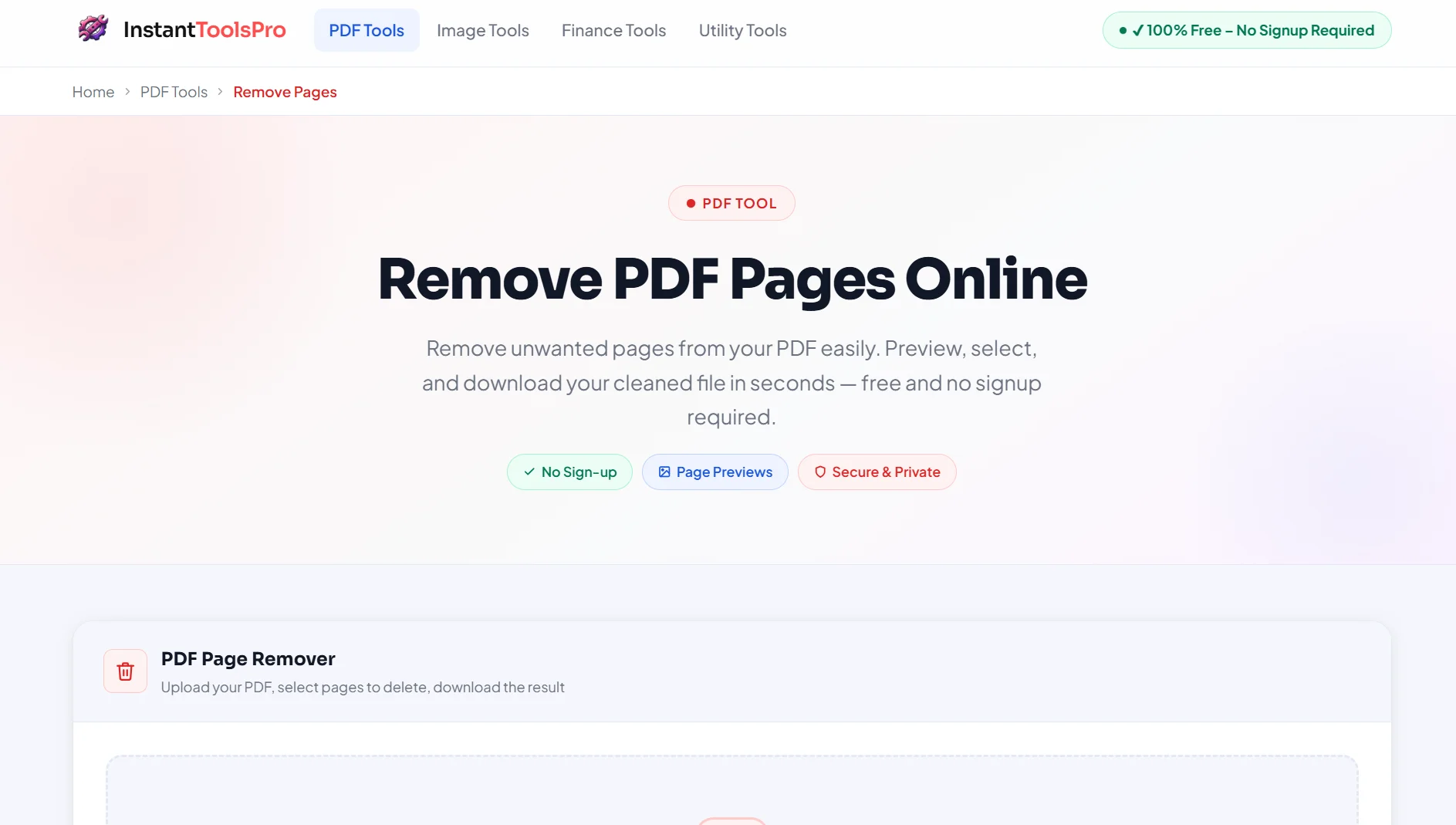
Step-by-Step: Remove PDF Pages Online
Using InstantToolsPro's free PDF Page Remover takes less than 30 seconds:
Open the Remove Pages Tool
Visit instanttoolspro.com/pdf-tools/remove-pages — no account needed.
Upload Your PDF
Click "Select PDF" or drag and drop your file. Files up to 100MB are supported.
Select Pages to Remove
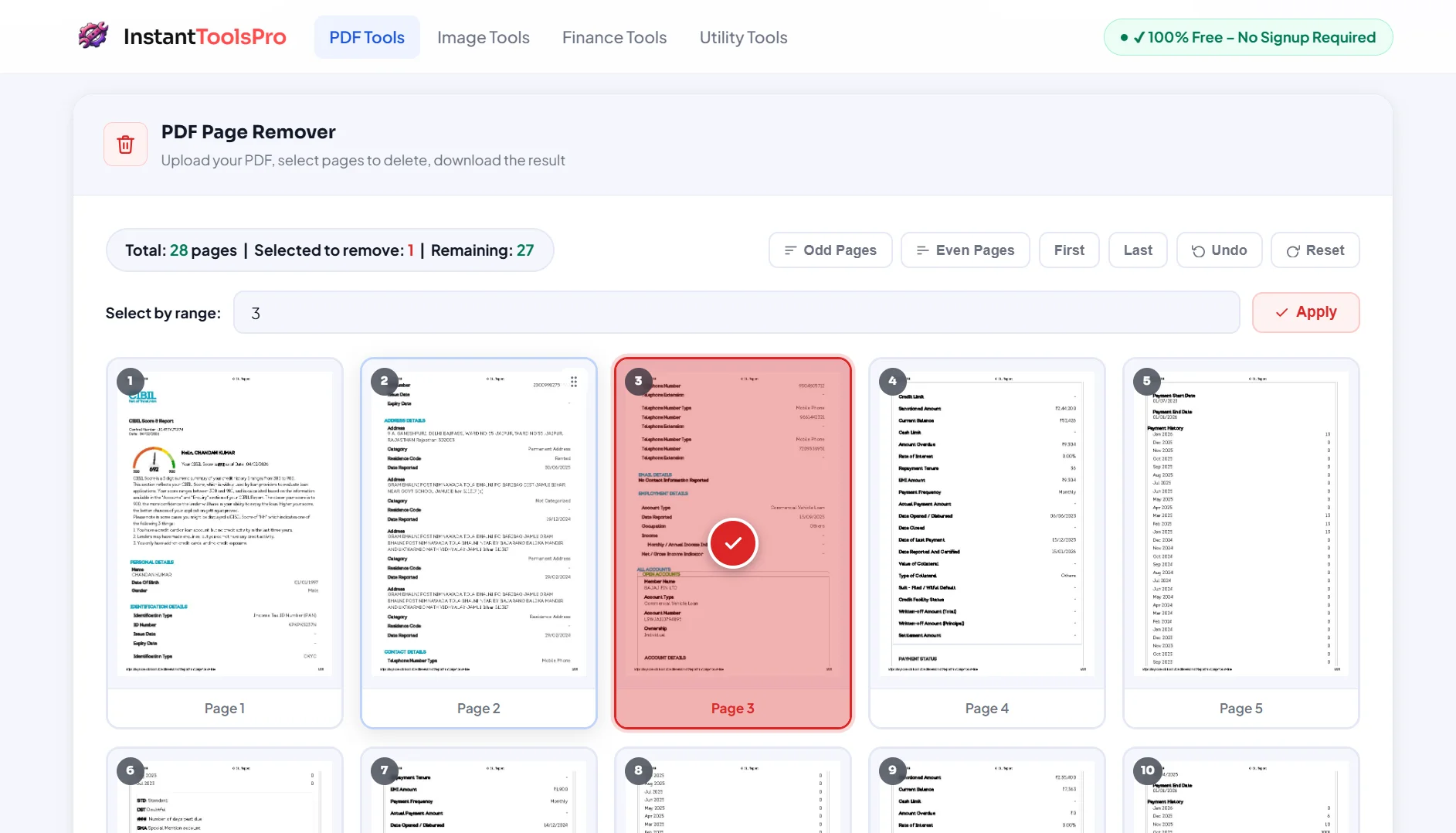
You'll see a visual thumbnail preview of every page. Simply click on the pages you want to delete — they'll be highlighted in red.
Click "Remove Pages"
Hit the button and our tool will process your PDF instantly — usually under 5 seconds.
Download the Result
Your cleaned PDF is ready to download — with only the pages you wanted to keep.
Your files are never stored on our servers. All uploads are automatically deleted immediately after processing.
Try Our Free PDF Page Remover
Remove any page from your PDF instantly — free, fast, no signup needed.
Other Methods to Delete PDF Pages
1. Adobe Acrobat (Desktop)
Open the PDF → View → Page Panel → right-click on the page → Delete Pages. This works well but requires a paid Adobe subscription ($19.99/month).
2. Preview on Mac (Free)
Open the PDF in Preview → View → Thumbnails → select the page → press Delete key → Save. This is a great free option for Mac users, but it's not available on Windows.
3. Google Chrome (Free)
Open PDF in Chrome → Print → "Save as PDF" → under Pages, enter only the pages you want to keep. This is a workaround — not ideal for selecting individual pages to remove.
4. Microsoft Word (Windows)
Open the PDF in Word (it converts automatically) → delete the unwanted pages → export back to PDF. Works for simple PDFs but may alter formatting.
Word-based conversion often breaks complex PDF layouts — tables, images, and columns may shift. For best results, always use a dedicated PDF tool.
Pro Tips for Managing PDF Pages
- Preview before removing — Always check thumbnails to make sure you're deleting the right pages.
- Use page ranges — Instead of selecting pages one by one, enter a range like "3-7" to remove multiple pages fast.
- Combine with Split PDF — If you want to keep specific sections as separate files, use our Split PDF tool after removing pages.
- Compress after removing — Fewer pages + compression = much smaller file. Use our PDF Compressor as the next step.
- Check page count first — Open the PDF in any viewer to note which page numbers you want to delete before uploading.
Tool Comparison
| Tool | Free | No Install | Visual Preview | Privacy |
|---|---|---|---|---|
| InstantToolsPro | ✓ | ✓ | ✓ | ✓ Auto-delete |
| Adobe Acrobat | ✗ Paid | ✗ | ✓ | ✓ |
| Mac Preview | ✓ | ✓ | ✓ | ✓ |
| SmallPDF | ✗ Limits | ✓ | ✓ | ✗ |
| Google Chrome | ✓ | ✓ | ✗ | ✓ |
Frequently Asked Questions
Can I remove multiple pages at once?
Yes — our tool lets you select multiple pages simultaneously using the visual thumbnail view. Click all the pages you want to remove, then click "Remove Pages" once.
Will removing pages affect the remaining content?
No. Removing pages does not alter the formatting, images, or text of the pages that remain. The rest of your PDF stays exactly as it was.
Can I remove pages from a password-protected PDF?
You'll need to unlock the PDF first. Use our PDF Unlocker to remove the password, then use the page remover tool.
Is there a limit on how many pages I can remove?
No limit — you can remove as many pages as you like, as long as at least one page remains in the final document.
What file size is supported?
Our tool supports PDF files up to 100MB. For larger files, consider compressing the PDF first using our PDF Compressor.
Is my document safe?
Yes. All uploaded files are processed securely and automatically deleted from our servers immediately after you download the result. We never read, store, or share your documents.
Ready to Remove Unwanted Pages?
Free, instant, secure — works on all devices. No signup required.