
Large PDF files are a headache — slow to upload, hard to email, and frustrating to share. But compressing a PDF doesn't have to mean sacrificing quality. In this guide, we'll show you exactly how to reduce PDF file size by up to 90% while keeping your images, text, and formatting crisp and clear.
What is PDF Compression?
PDF compression is the process of reducing a PDF file's size by optimizing its internal content — images, fonts, metadata, and embedded objects — without changing what you see on screen.
There are two types of compression:
- Lossless compression — Reduces size with zero quality change. Best for text-heavy PDFs.
- Lossy compression — Slightly reduces image quality to achieve much smaller file sizes. Best for scanned documents or image-heavy PDFs.
For most use cases — emails, uploads, sharing — a good lossy compression at 80–90% quality is completely unnoticeable to the human eye.
Why Should You Compress a PDF?
Here are the most common reasons people compress PDF files:
- Email limits — Most email clients cap attachments at 10–25 MB.
- Cloud storage — Save space on Google Drive, Dropbox, OneDrive.
- Website uploads — Smaller PDFs load faster on web pages.
- Mobile sharing — WhatsApp, Telegram compress media but struggle with large PDFs.
- Form submissions — Many online portals have strict file size limits.
3 Best Methods to Compress PDF
1. Online PDF Compressor (Recommended)
The fastest and easiest method — no software installation required. Simply upload your PDF and download the compressed version in seconds.
Best for: Quick compression, one-off files, all devices.
2. Adobe Acrobat (Desktop)
Acrobat's "Reduce File Size" feature offers granular control over compression settings. However, it requires a paid subscription ($19.99/month).
Best for: Professionals who need advanced settings.
3. Print to PDF (Built-in)
On Mac, you can use the built-in Print → Save as PDF feature with "Best" quality setting. On Windows, Microsoft Print to PDF works similarly.
Best for: Quick fix, no internet required.
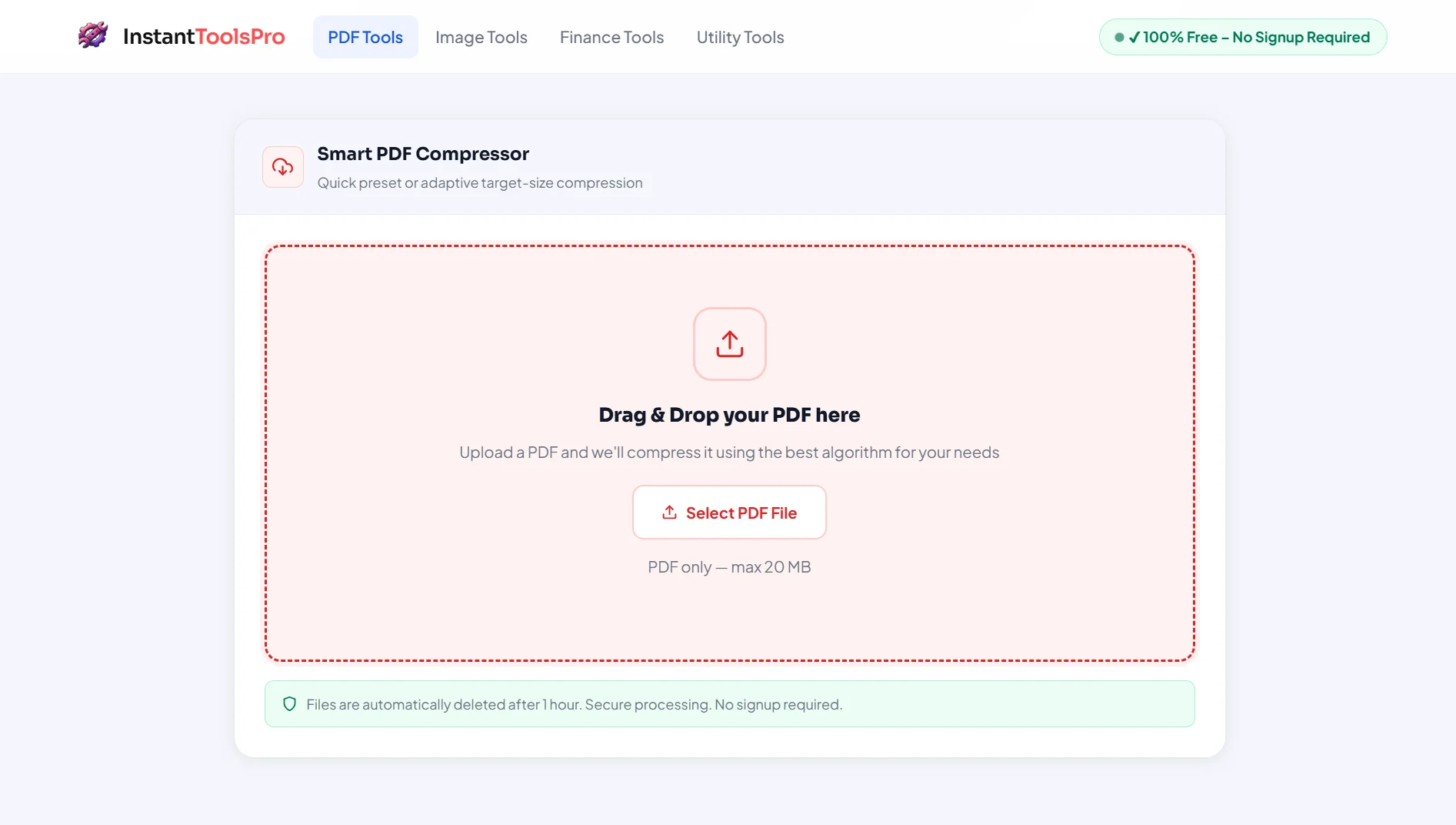
Try Our Free PDF Compressor
Compress any PDF instantly — no signup, no watermark, no software needed.
Step-by-Step: Compress PDF Online
Here's how to compress your PDF using InstantToolsPro's free PDF Compressor in under 60 seconds:
Open the PDF Compressor
Go to instanttoolspro.com/pdf-tools/compress. No account or signup needed.
Upload Your PDF
Click "Select File" or drag and drop your PDF into the upload area. Files up to 100MB are supported.
Choose Compression Level
Select from Low (best quality), Medium (balanced), or High (smallest size). You can also set a target file size in MB.
Click "Compress PDF"
Our tool uses Ghostscript engine to compress your file — typically takes 5–15 seconds.
Download Your File
Download the compressed PDF. You'll see exactly how much size was saved (e.g., 8.5 MB → 1.2 MB).
Your files are automatically deleted from our servers after processing. We never store or share your documents.
Tips to Reduce PDF Size Without Quality Loss
- Optimize images before creating the PDF — Compress images to 150–200 DPI before embedding them.
- Remove unnecessary pages — Use a PDF page remover to delete blank or unused pages.
- Avoid scanning in high DPI — Scan documents at 150 DPI instead of 300+ for smaller sizes.
- Flatten layers — If using Photoshop or Illustrator, flatten all layers before exporting to PDF.
- Remove metadata — Hidden metadata (author info, comments, history) adds unnecessary bulk.
- Use PDF/A format — For archival, PDF/A is more optimized than standard PDF.
Online vs Desktop vs Mobile
| Method | Speed | Free | No Install | Privacy |
|---|---|---|---|---|
| Online Tool (InstantToolsPro) | Fast | ✓ | ✓ | ✓ Auto-delete |
| Adobe Acrobat | Medium | ✗ Paid | ✗ | ✓ |
| Mac Preview | Fast | ✓ | ✓ | ✓ |
| SmallPDF / ILovePDF | Medium | ✗ Limits | ✓ | ✗ |
Frequently Asked Questions
Does compressing a PDF reduce quality?
It depends on the compression level. Low compression has virtually zero visible quality loss. High compression may slightly reduce image sharpness, but text always stays sharp regardless of compression level.
What is the maximum file size I can compress?
Our free PDF compressor supports files up to 100MB — enough for most use cases including scanned books and presentation PDFs.
Is it safe to compress PDFs online?
Yes — as long as you use a trusted tool. InstantToolsPro automatically deletes your files from our servers immediately after processing. We never store, read, or share your documents.
Can I compress a password-protected PDF?
You'll need to unlock the PDF first using our PDF Unlocker, then compress it.
Why is my PDF still large after compression?
If your PDF contains many high-resolution embedded images or vector graphics, there's a limit to how much it can be compressed without quality loss. Try our Target Size Mode to set a specific target file size.
Ready to Compress Your PDF?
Free, fast, secure — no signup required. Works on all devices.