
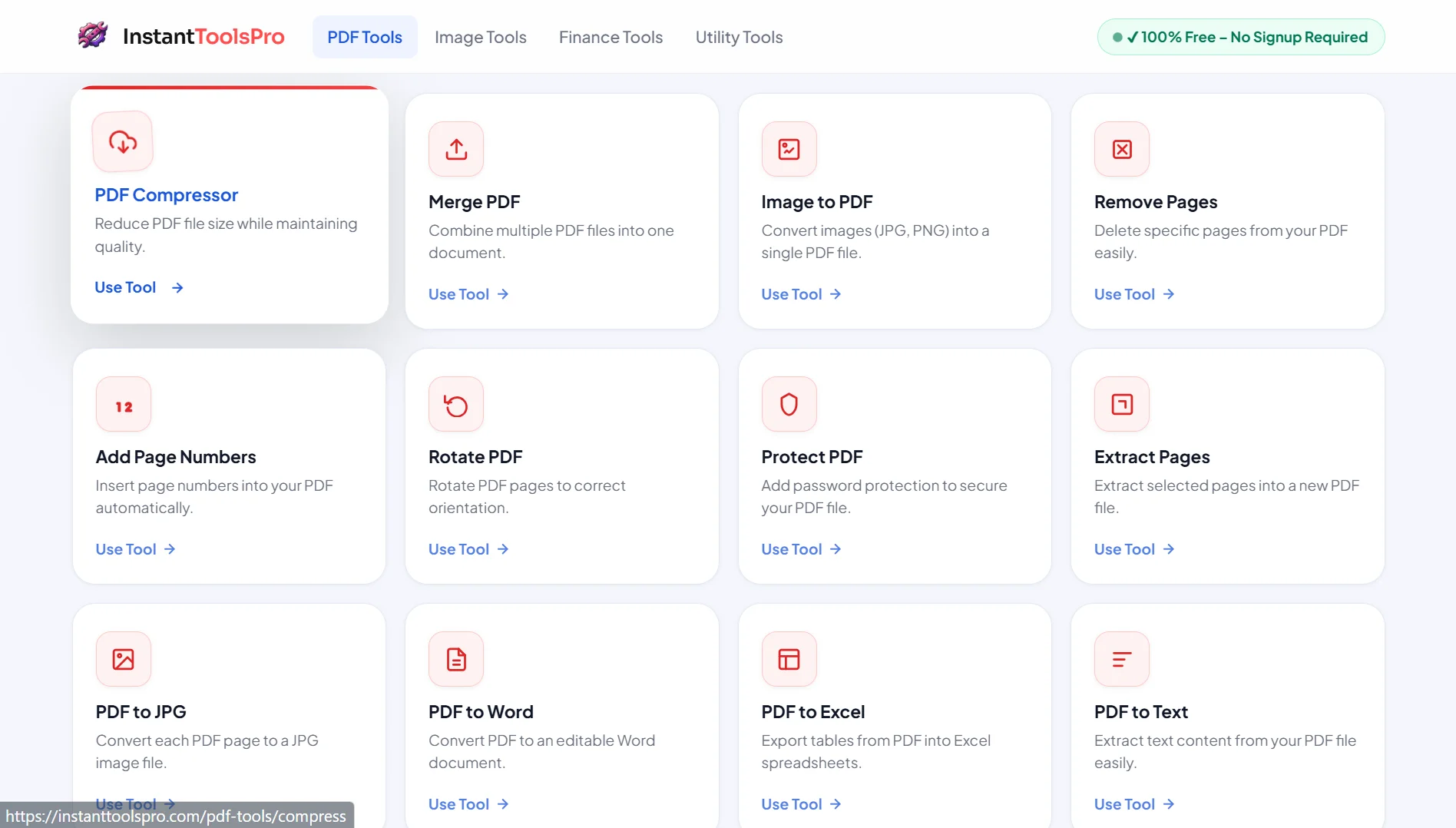
PDF is the world's most widely used document format — it preserves formatting perfectly across every device and operating system, making it the global standard for contracts, reports, invoices, and official documents. But working with PDFs has historically required expensive software like Adobe Acrobat Pro ($19.99/month). In 2026, that's no longer true. Here are the 10 best free PDF tools you can use right now — directly in your browser, with no signup, no watermark, and no software to install.
Why Use Free Online PDF Tools?
For most everyday PDF tasks — compressing a file before emailing it, combining multiple documents, or converting a PDF to Word — paying for expensive desktop software simply doesn't make sense. Free online PDF tools deliver the same results instantly, from any device, without installation, licenses, or monthly fees.
All the tools listed in this guide are available on InstantToolsPro — 100% free, no account required, and with automatic file deletion after every session so your documents always stay private and secure.
Every tool on this list is completely free — no hidden limits, no watermarks, no signup. Your uploaded files are automatically deleted from our servers immediately after processing.
1. PDF Compressor — Reduce PDF Size by Up to 90%
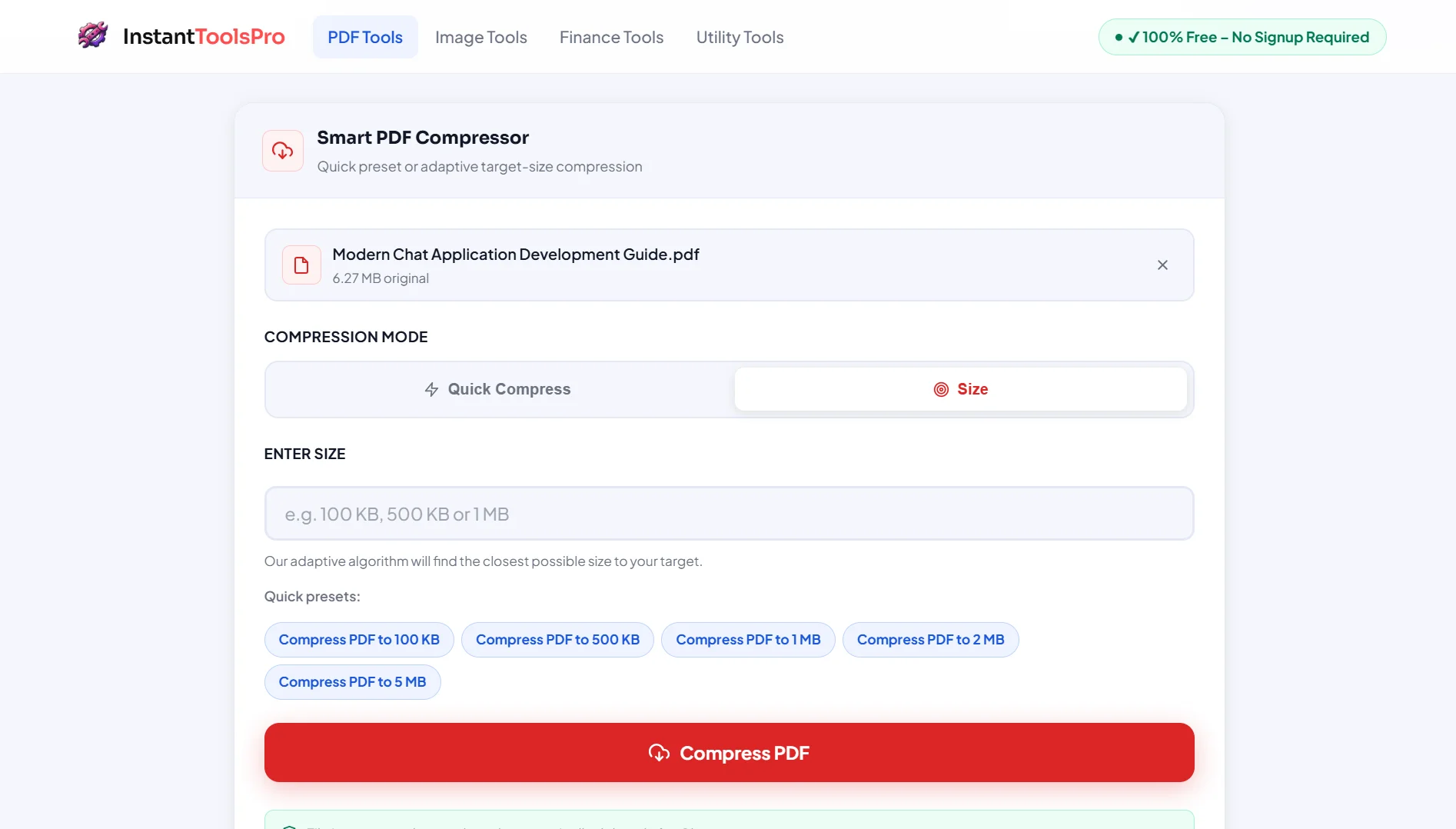
The PDF Compressor is the single most used PDF tool for everyday tasks. Large PDF files are a constant headache — too big to email, slow to upload, and frustrating to share via WhatsApp or Slack. Our compressor uses the Ghostscript engine to reduce PDF file size by up to 90% while keeping text sharp and images clear throughout.
What makes this tool genuinely useful is the Target Size Mode. Instead of just selecting a compression level and hoping for the best, you enter an exact target file size in MB. The tool's adaptive five-step algorithm then applies the optimal compression settings to hit that target as closely as possible — perfect for portals with strict upload limits like government forms, court filings, or university submissions.
Best for: Emailing large reports, uploading to file-size-limited portals, sharing PDFs via messaging apps, reducing cloud storage usage.
2. Merge PDF — Combine Multiple PDFs Into One
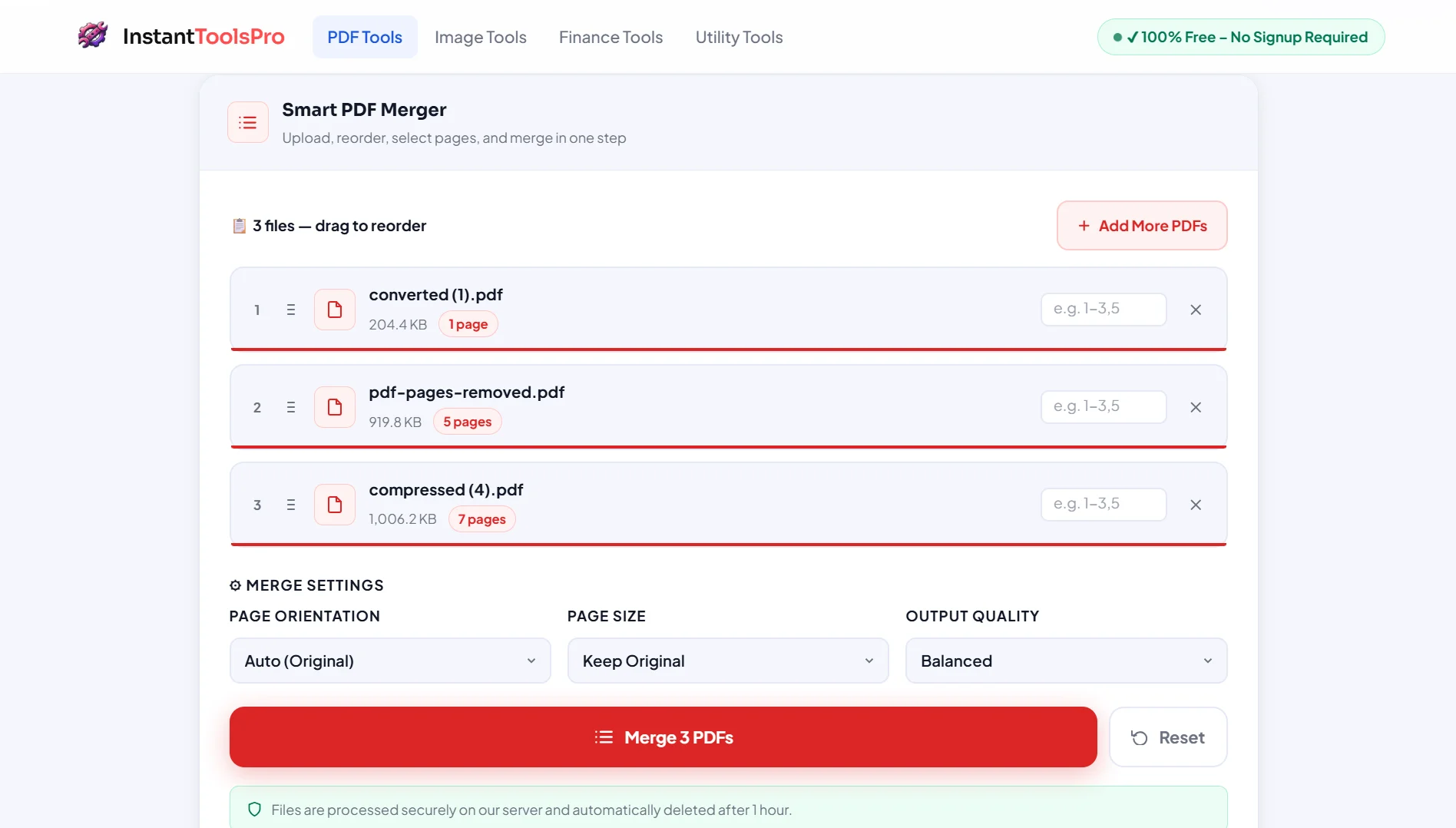
The Merge PDF tool lets you combine any number of PDF files into a single, unified document in seconds. Whether you're assembling a multi-chapter report from separate files, combining a cover letter with your resume and portfolio, or packaging a set of invoices for a client — merging works instantly with zero quality loss.
Upload your files, drag and drop them into your desired order, and click Merge. Every source document's formatting, fonts, images, and page layouts are preserved exactly as they were. There is no limit on the number of files you can merge in a single operation, and the resulting PDF is clean and professional — indistinguishable from a document created as a single file from the start.
Best for: Combining resumes and cover letters, assembling multi-section reports, packaging invoices, creating unified submissions from separate chapter files.
3. Split PDF — Extract Pages Into Separate Files
The Split PDF tool does the opposite of merging — it breaks a large PDF into smaller, separate files. You can split by specific page ranges, extract individual pages, or divide the document into equal sections. This is invaluable when you receive a large combined PDF and need to share only specific sections with different people.
A common use case is splitting a 200-page annual report so each department receives only their relevant section. Another is extracting specific pages from a legal document to share with a particular party. The split tool handles all of this in seconds without any quality loss to the extracted pages.
Best for: Extracting chapters from large reports, sharing specific pages from confidential documents, breaking oversized PDFs into smaller email-friendly sections.
4. Remove PDF Pages — Delete Unwanted Pages Instantly
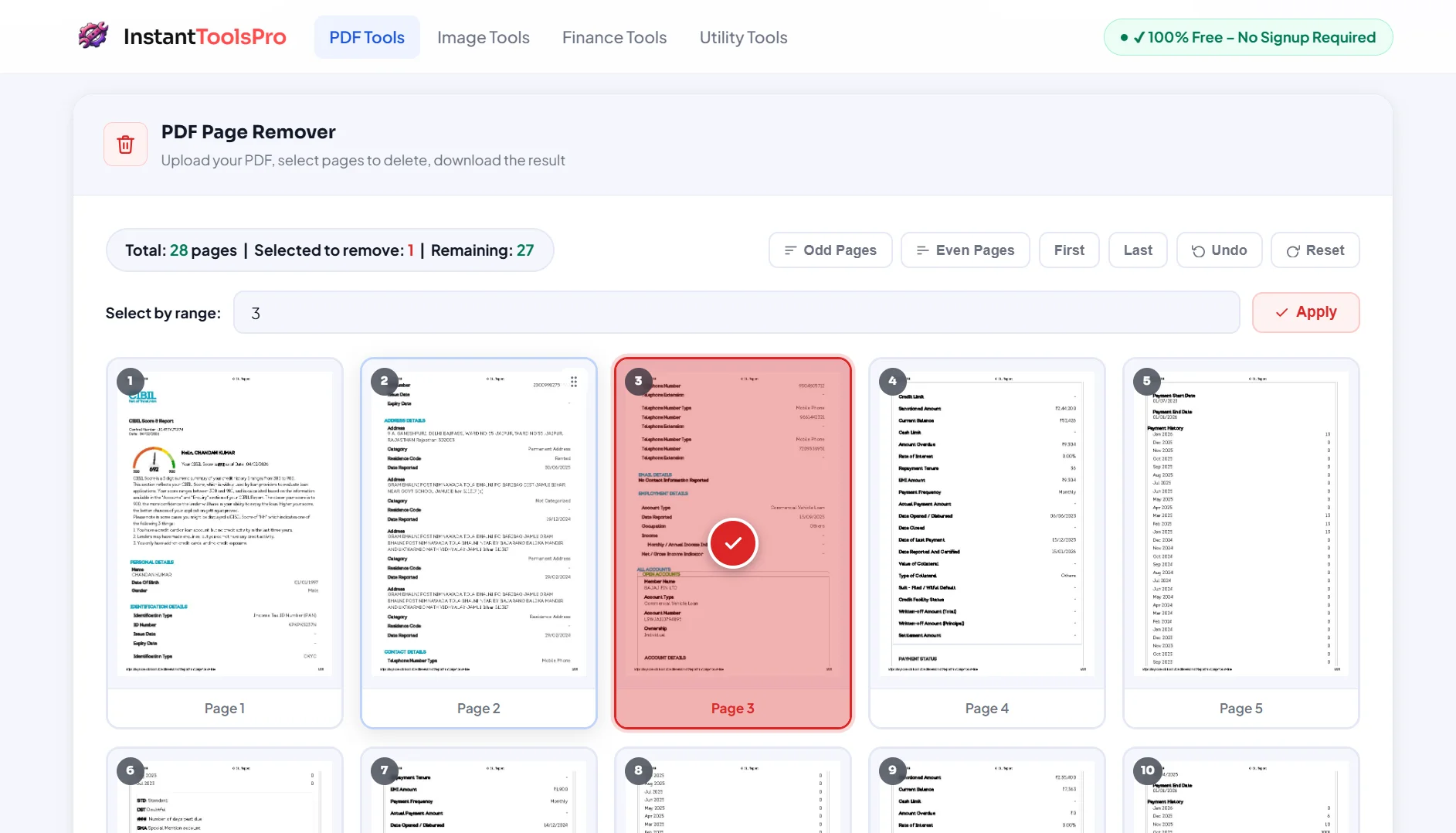
The Remove PDF Pages tool lets you delete specific pages from any PDF — whether it's blank filler pages that scanners add between documents, cover pages you don't need to share, or confidential sections that shouldn't go to certain recipients. A visual thumbnail preview of every page lets you see exactly what you're deleting before you confirm.
Click any page thumbnail to mark it for deletion — selected pages are highlighted so you always know what will be removed. You can select multiple pages at once and delete them all in a single operation. The remaining pages stay exactly as they were, with no change to their content, formatting, or quality.
Best for: Removing blank scanner pages, stripping cover pages before sharing, deleting confidential sections, cleaning up scanned documents.
5. PDF to Word Converter — Edit Your PDF Content
The PDF to Word converter transforms any PDF into a fully editable Microsoft Word document (.docx). This is one of the most frequently needed PDF conversions — when you receive a PDF that needs corrections, want to reuse content from a PDF in a new document, or need to update a contract that was only saved as PDF.
The converter works best on text-based PDFs — business reports, contracts, academic papers, and standard documents convert with high fidelity, preserving paragraph structure, headings, and basic formatting. For scanned PDFs (images of text rather than actual text), OCR technology is applied to recognize and extract the text before conversion.
Best for: Editing received PDF contracts, reusing content from PDF reports, updating documents only available in PDF format, extracting text for repurposing.
6. PDF to JPG Converter — Convert PDF Pages to Images
The PDF to JPG converter turns every page of your PDF into a high-quality JPG image. This is particularly useful when you need to share PDF content on platforms that don't support PDF uploads — social media, image-based portfolios, or messaging apps — or when you want to embed specific PDF pages as images in a presentation or web page.
Each page of your PDF is converted into a separate, high-resolution JPG file. You can then download the individual page images or all of them at once as a ZIP archive. The output quality is consistently high — text remains sharp, graphics stay clear, and color accuracy is preserved throughout the conversion.
Best for: Sharing PDF content on social media, embedding PDF pages in presentations, creating image versions of certificates or documents, archiving PDF pages as images.
All PDF Tools — 100% Free
No signup. No watermark. No software. Works on every device.
7. Add Page Numbers to PDF — Professional Numbering in Seconds
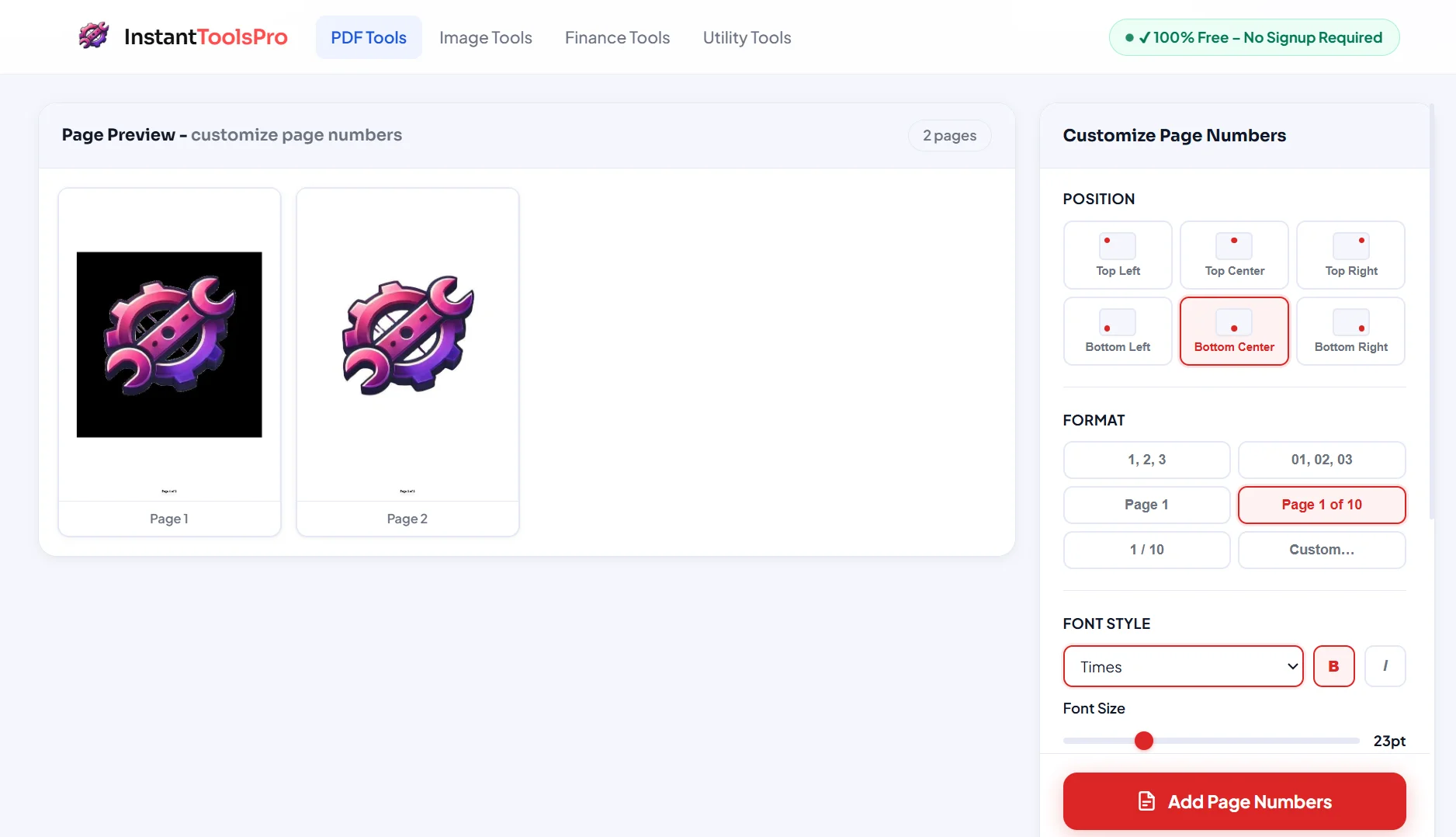
The Add Page Numbers tool lets you stamp clean, professional page numbers onto any PDF with full control over position, alignment, starting number, and font size. Academic papers, legal contracts, business reports, and printed manuals all benefit significantly from proper page numbering — and this tool makes it effortless.
You can place numbers at any of six positions: top-left, top-center, top-right, bottom-left, bottom-center, or bottom-right. You can set a custom starting number — useful when your PDF is a continuation of a larger document — and use the "Skip First Page" option to keep cover pages clean and unnumbered. The entire process takes under 30 seconds from upload to download.
Best for: Academic thesis and paper submissions, legal document preparation, business report formatting, printed manual production, any document that requires page references.
8. Add Watermark to PDF — Brand and Protect Your Documents
The Add Watermark tool lets you stamp any text watermark — "CONFIDENTIAL," "DRAFT," your company name, or any custom text — across every page of your PDF. Watermarks are essential for protecting documents you share externally, clearly marking draft versions, or branding documents with your organization's identity before distribution.
Customize the watermark's text, font size, opacity, rotation angle, and position on the page. A subtle, semi-transparent watermark in the center of each page is the most professional and widely used approach — visible enough to communicate the document's status, but not so intrusive that it obscures the content. All settings are previewed before you apply, so you always get exactly the result you want.
Best for: Marking documents as DRAFT or CONFIDENTIAL, branding shared documents with your company name, protecting intellectual property, marking proofs before final approval.
9. Protect PDF — Password Lock Your Documents
The Protect PDF tool adds password encryption to any PDF, ensuring that only authorized recipients can open and read the document. This is critical when sharing sensitive information — financial reports, personal records, confidential contracts, or any document containing private data that shouldn't be freely accessible to anyone who intercepts the file.
Set an opening password that recipients must enter before the PDF displays its content. You can also set separate permissions passwords to control whether recipients can print, copy text, or edit the document — giving you granular control over exactly what people can do with your protected PDF even after they've opened it. The encryption uses industry-standard AES-256, the same encryption standard used by banks and governments worldwide.
Best for: Protecting financial reports, securing personal documents before emailing, locking contracts before client review, preventing unauthorized printing or copying of proprietary content.
10. Unlock PDF — Remove Password from PDF
The Unlock PDF tool removes password protection from PDFs you own and have the right to access. This is necessary when you need to edit, print, or further process a PDF that was locked — for example, a PDF you password-protected yourself but no longer need locked, or a protected document you received with explicit permission to unlock for editing purposes.
Simply upload your password-protected PDF, enter the current password to verify your authorization, and download the unlocked version. The unlocked PDF retains all original content, formatting, and quality — only the password restriction is removed. This tool is also essential before using other tools like the compressor or page remover on PDFs that are password-protected, as those tools require an unlocked input file.
Best for: Removing passwords from your own protected PDFs, preparing locked PDFs for compression or editing, unlocking PDFs you've received with authorization to edit.
Frequently Asked Questions
What is the best free PDF tool online in 2026?
InstantToolsPro offers the most comprehensive collection of free PDF tools available online in 2026 — covering compression, merging, splitting, page removal, format conversion, watermarking, password protection, and more. Every tool is completely free, requires no account, and adds no watermark to your output files.
Can I use these PDF tools without creating an account?
Yes — completely. None of the tools on InstantToolsPro require signup, registration, or any form of account creation. Simply open the tool, upload your PDF, select your settings, and download the result. There are no daily usage limits for free users and no features locked behind a paywall.
Are these PDF tools safe to use?
Yes. All uploaded files are processed in a secure, isolated environment on our servers and are automatically and permanently deleted the moment your download is complete. We never store, read, index, or share your documents under any circumstances. Your files are completely private.
Do these tools work on mobile devices?
Yes. Every tool on InstantToolsPro is fully mobile-responsive and works seamlessly on iPhone, Android, iPad, and any tablet through Safari, Chrome, or any modern browser. No app installation is required — the tools work directly in your mobile browser with the same features and performance as the desktop version.
What is the maximum file size supported?
Most tools support PDF files up to 100MB, which covers the overwhelming majority of everyday PDF files. For very large files — such as high-resolution design files or lengthy illustrated reports — consider running the PDF through the PDF Compressor first to reduce its size before using other tools.
Can I use multiple PDF tools together?
Absolutely — and this is often the most effective approach. A common workflow is: unlock the PDF if it's password-protected → remove unwanted pages → compress for a smaller file size → add page numbers → protect with a new password before distribution. Each tool is designed to work seamlessly with the others as part of a complete PDF editing workflow.
Explore All Free PDF Tools
10+ PDF tools — free, instant, secure. No signup ever required.