
Adding page numbers to a PDF makes it easier to navigate, reference, and share — especially for long reports, manuals, research papers, and contracts. Yet most people don't realize you can do this completely free, without installing any software. In this step-by-step guide, you'll learn exactly how to add page numbers to any PDF file online in under a minute.
Why Add Page Numbers to a PDF?
Page numbers might seem like a small detail, but they make a huge difference in how your document is received and used. Whether you're submitting a report to a client, sharing a research paper, or sending a legal contract, page numbers bring professionalism and structure to your PDF.
The most common reason people add page numbers is easier navigation. When someone says "check page 14," your reader can jump there instantly instead of scrolling through the entire document. This matters especially for PDFs that are 10, 20, or 100+ pages long.
Page numbers also help when printing. Printed documents often get shuffled or reorganized — numbered pages make it trivial to put them back in order. For court filings, government submissions, and academic submissions, page numbers are often mandatory.
Finally, page numbers improve your PDF's table of contents. If your document has a TOC, page numbers make every entry directly actionable — readers can immediately flip to the right section.
Step-by-Step: Add Page Numbers to PDF Online
Using InstantToolsPro's free PDF Page Number tool is the fastest way to add page numbers to any PDF — no account, no software, no watermark. Here's exactly how to do it:
Open the Add Page Numbers Tool
Visit instanttoolspro.com/pdf-tools/add-page-numbers. No signup or account is required.
Upload Your PDF File
Click "Select PDF" or drag and drop your file directly onto the upload area. PDF files up to 100MB are supported.
Choose Your Page Number Style
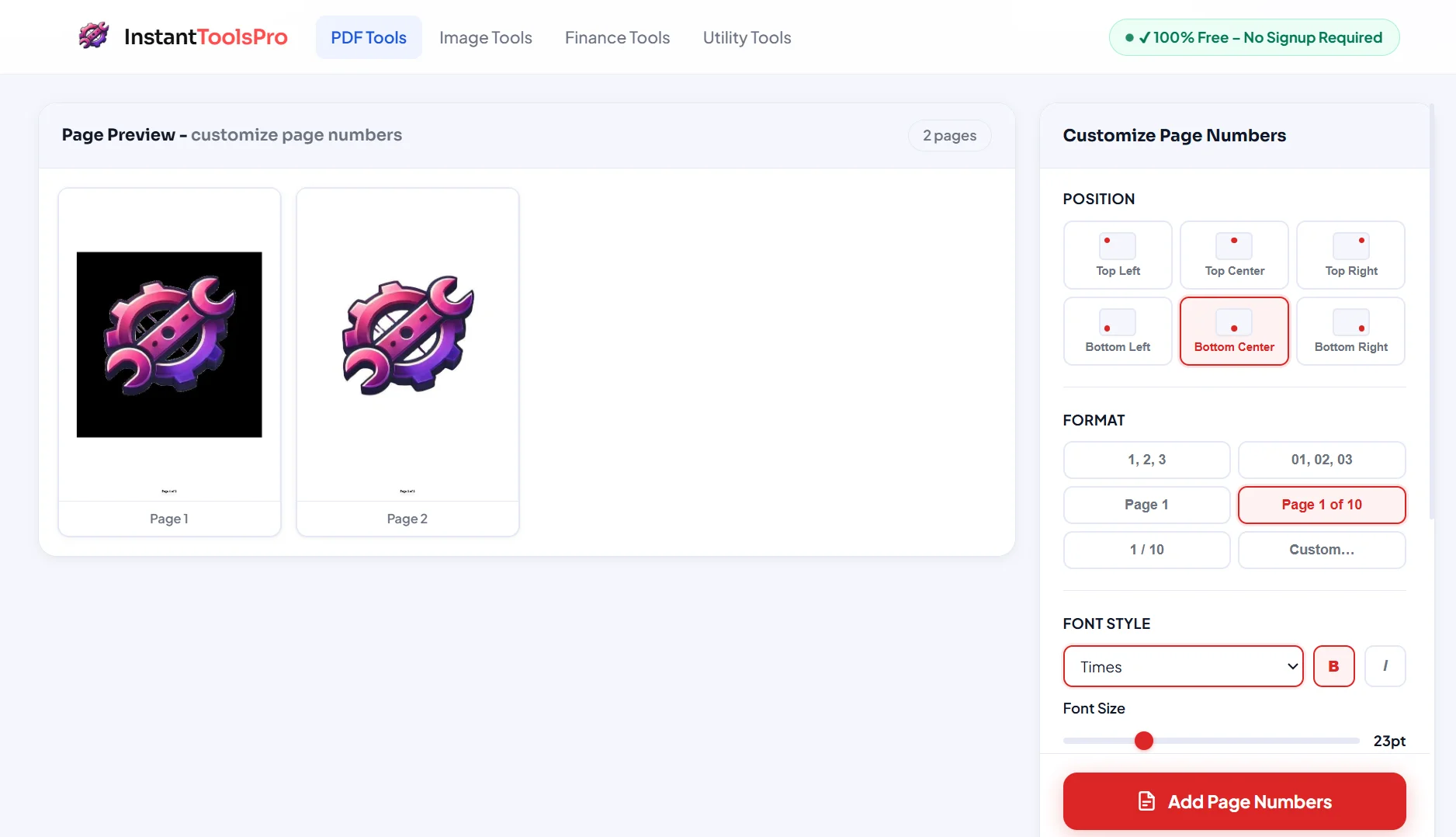
Select the position (top or bottom), alignment (left, center, or right), font size, and starting page number. You can also choose to skip the first page — useful if your PDF has a cover page.
Click "Add Page Numbers"
Hit the button and our tool will process your PDF in seconds — typically under 10 seconds even for large files.
Download Your Numbered PDF
Your PDF is ready with clean, professional page numbers. Download it instantly — no email required.
Your files are automatically deleted from our servers right after you download. We never store, read, or share your documents.
Add Page Numbers to Your PDF — Free
No signup. No watermark. No software. Works on all devices.
Customization Options Available
Unlike basic tools that just stamp a number in the corner, InstantToolsPro gives you full control over how your page numbers look and where they appear.
Position — Top or Bottom
You can place page numbers at the top or bottom of each page. Bottom placement is the most common standard for reports and academic papers, while top placement works better for legal documents and contracts where the bottom margin is reserved for signatures.
Alignment — Left, Center, or Right
Choose whether your page numbers appear on the left side, center, or right side of the header or footer. Centered page numbers are the most universally accepted style. Right-aligned page numbers are common in books and formal reports. Left-aligned is less common but works well for internal documents.
Starting Number
By default, page numbering starts from 1. But if your PDF is a continuation of a larger document, you can set any custom starting number — for example, starting from page 47 if this section follows a 46-page chapter.
Skip First Page
If your PDF has a cover page or title page, you probably don't want a page number on it. The "Skip First Page" option lets you start numbering from the second page onward while keeping the first page clean.
Font Size
Control the size of your page numbers to match your document's visual style. Smaller fonts (8–10pt) are subtle and unobtrusive, while larger sizes (12–14pt) are easier to spot when flipping through a printed document.
When Should You Add Page Numbers?
Not every PDF needs page numbers, but there are clear situations where they're either required or strongly recommended.
Academic papers and theses almost always require page numbers — most universities have strict formatting guidelines that specify exactly where and how page numbers should appear. Adding them online takes seconds and ensures your submission meets requirements.
Business reports and proposals benefit enormously from page numbers. When presenting a 30-page quarterly report to stakeholders, being able to say "let's go back to the chart on page 12" makes discussions faster and more professional.
Legal contracts and agreements often legally require page numbers, especially in multi-page contracts where each page may need to be initialed. Courts and regulatory bodies typically require numbered pages in submitted documents.
Manuals and guides — whether for products, software, or internal company processes — are far more usable when numbered. A numbered table of contents is useless without corresponding page numbers throughout the document.
On the other hand, single-page PDFs, certificates, and purely visual PDFs like brochures typically don't need page numbers and look cleaner without them.
Other Ways to Add Page Numbers to PDF
There are several ways to add page numbers to a PDF beyond using an online tool. Each has its own trade-offs worth knowing about.
Adobe Acrobat Pro is the most powerful desktop option. It offers granular control over page number formatting, fonts, colors, and Bates numbering for legal documents. The downside is cost — Acrobat Pro requires a paid subscription at $19.99 per month, which is overkill if you only need to number a PDF occasionally.
Microsoft Word can add page numbers if you first convert your PDF to a Word document, add the numbers in Word, then export back to PDF. This works for simple, text-based PDFs but often breaks complex layouts — tables, images, and columns frequently shift during conversion, leaving you with a messy result.
LibreOffice is a free alternative to Word that can open PDFs and add page numbers before re-exporting. The quality is similar to Word — acceptable for plain documents but unreliable for complex PDFs. It also requires installation, which isn't ideal for quick one-off tasks.
Mac Preview unfortunately does not support adding page numbers directly. You'd need to use a third-party app or an online tool, making online tools the most practical option for Mac users who don't have Acrobat installed.
For most people, an online tool like InstantToolsPro is the clear winner — it's free, instant, requires no installation, and works on Windows, Mac, Linux, and mobile equally well.
Pro Tips for Better PDF Page Numbering
Match the numbering style to your document type. Academic papers typically use Arabic numerals (1, 2, 3) for the main body and Roman numerals (i, ii, iii) for the introduction and table of contents. If your PDF has both sections, consider splitting it, numbering each section separately, then merging using our PDF Merge tool.
Always compress after numbering. Adding page numbers slightly increases your PDF's file size. Running it through our PDF Compressor afterwards keeps the file lean without any visible quality change.
Preview before finalizing. Always open your numbered PDF and check a few pages — especially the first, last, and any page with unusual content — to confirm the numbers appear exactly where you want them.
Use "Skip First Page" for cover pages. A page number on your cover page looks unprofessional. Use the skip option to keep your cover clean while numbering everything else correctly.
For long documents, use a larger font. If your PDF will primarily be printed rather than read on screen, use a slightly larger font size for page numbers (11–12pt) so they're easy to see at the bottom of a printed sheet.
If you need to remove existing page numbers before adding new ones, first use our Remove Pages tool to strip out header/footer pages, then re-add clean numbers with full control.
Frequently Asked Questions
Can I add page numbers to a PDF for free?
Yes — completely free. InstantToolsPro's page numbering tool has no cost, no signup requirement, and adds no watermark to your output file. You can use it as many times as you like.
Where can I position the page numbers?
You can place page numbers at any of six positions: top-left, top-center, top-right, bottom-left, bottom-center, or bottom-right. Bottom-center is the most commonly used standard.
Can I start numbering from a page other than 1?
Yes. You can set any starting number you like. If your document is page 47 through 68 of a larger report, simply set the starting number to 47 and the tool will number accordingly.
Will adding page numbers change my PDF's content or formatting?
No. The page numbering tool only adds numbers in the margin area — it never touches the existing content, fonts, images, or layout of your document. Everything stays exactly as it was.
Can I add page numbers to a scanned PDF?
Yes. Scanned PDFs are treated as image-based documents, and our tool can still add page numbers to the margin. Since the content is an image, the numbering is added as a separate overlay element on top.
What's the maximum file size supported?
Our tool supports PDF files up to 100MB. For very large files, consider compressing your PDF first using our PDF Compressor to reduce the size before adding page numbers.
Is my document safe when I upload it?
Completely safe. All uploaded files are processed securely and automatically deleted from our servers the moment you download your result. We never store, read, index, or share any uploaded documents.
Ready to Number Your PDF?
Free, instant, secure — no signup required. Works on all devices.