
Whether you need to convert a PNG to JPG for smaller file sizes, transform HEIC photos from your iPhone into universally compatible formats, or switch to modern WebP for better web performance — knowing how to convert image formats quickly and without losing quality is an essential skill. This complete guide covers every major image format, the best conversion strategy for each use case, and how to do it all for free in seconds.
Why Do You Need to Convert Image Formats?
Every image format was designed for a specific purpose, and using the wrong format for a given situation has real consequences — larger file sizes, compatibility errors, missing transparency, or unnecessary quality loss. Understanding when and why to convert helps you always choose the right tool for the job.
The most common reason people convert images is compatibility. HEIC photos from iPhones, for example, are not supported by most Windows applications, social media platforms, or email clients by default. Converting HEIC to JPG makes those photos universally accessible. Similarly, vector formats like SVG cannot be used in many applications that only accept raster formats like JPG or PNG.
File size optimization is another major driver. A PNG file of a photograph can be 5–10 times larger than the equivalent JPG or WebP. If you've saved product images or blog photos as PNG out of habit, converting them to WebP can cut your total image weight by 60–70% — with a direct, measurable improvement to your website's loading speed and search rankings.
Transparency requirements also force format conversions. JPG does not support transparent backgrounds — if you need a logo or icon with a transparent background, you must use PNG, WebP, or SVG. Conversely, if you receive a PNG with a white background and need the image in JPG for a platform that only accepts JPG, you'll need to convert it.
Finally, platform requirements dictate format choices regularly. Instagram handles JPG best. Twitter recommends PNG for screenshots and JPG for photos. Google Docs and Slides have specific format preferences. Print services often require TIFF. Knowing how to convert between formats instantly means you're never blocked by a platform's requirements.
Step-by-Step: Convert Image Format Online Free
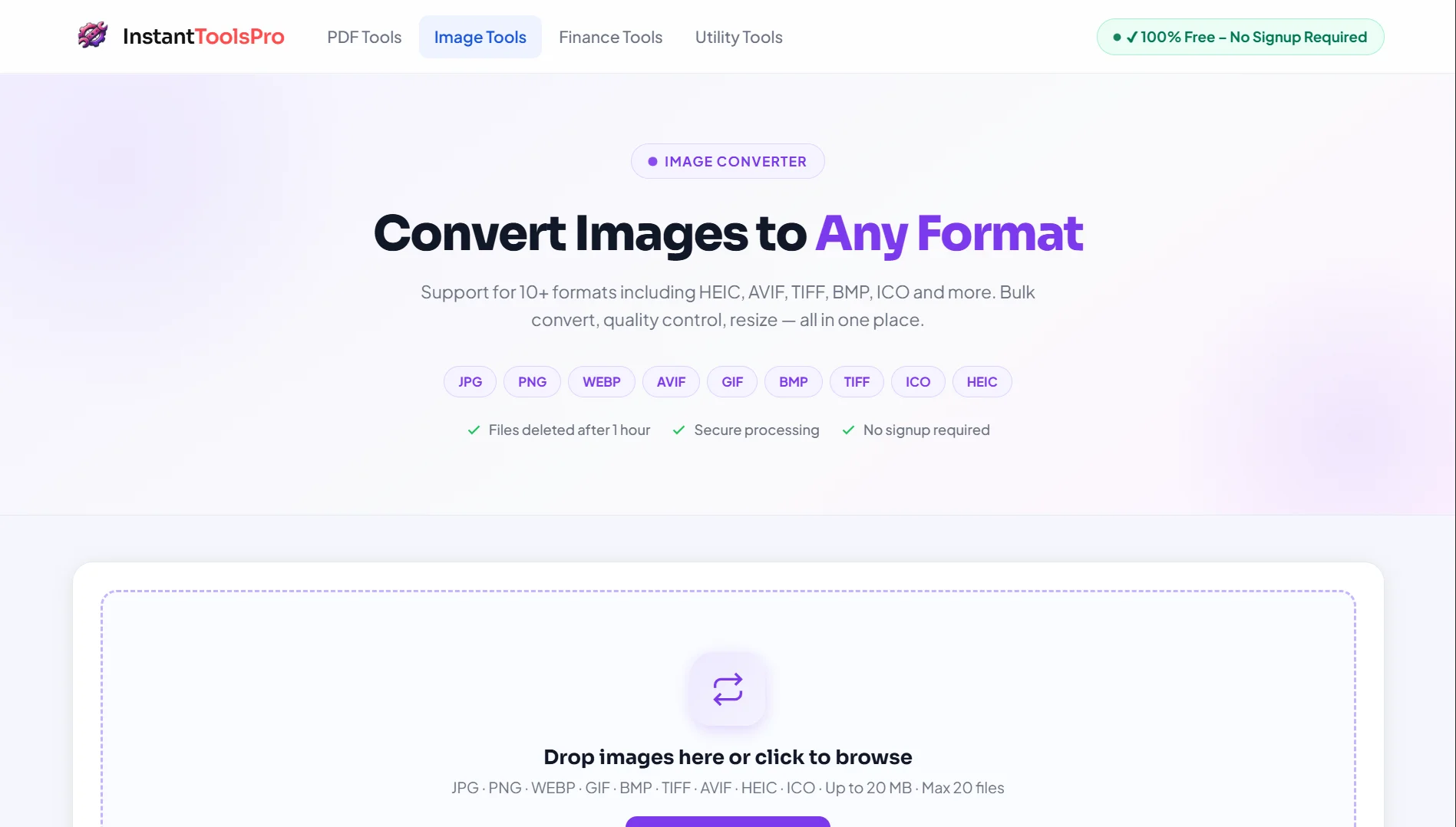
Converting image formats using InstantToolsPro's free Image Converter takes under 30 seconds and requires no software installation or account creation. Here's the complete process:
Open the Image Converter Tool
Navigate to instanttoolspro.com/image-tools/image-converter. The tool works directly in your browser — no downloads, no extensions, no account needed.
Upload Your Image
Click "Select Image" or drag and drop your file onto the upload area. Supported input formats include JPG, PNG, WebP, HEIC, GIF, BMP, TIFF, and SVG. Files up to 10MB are supported.
Choose Your Target Format
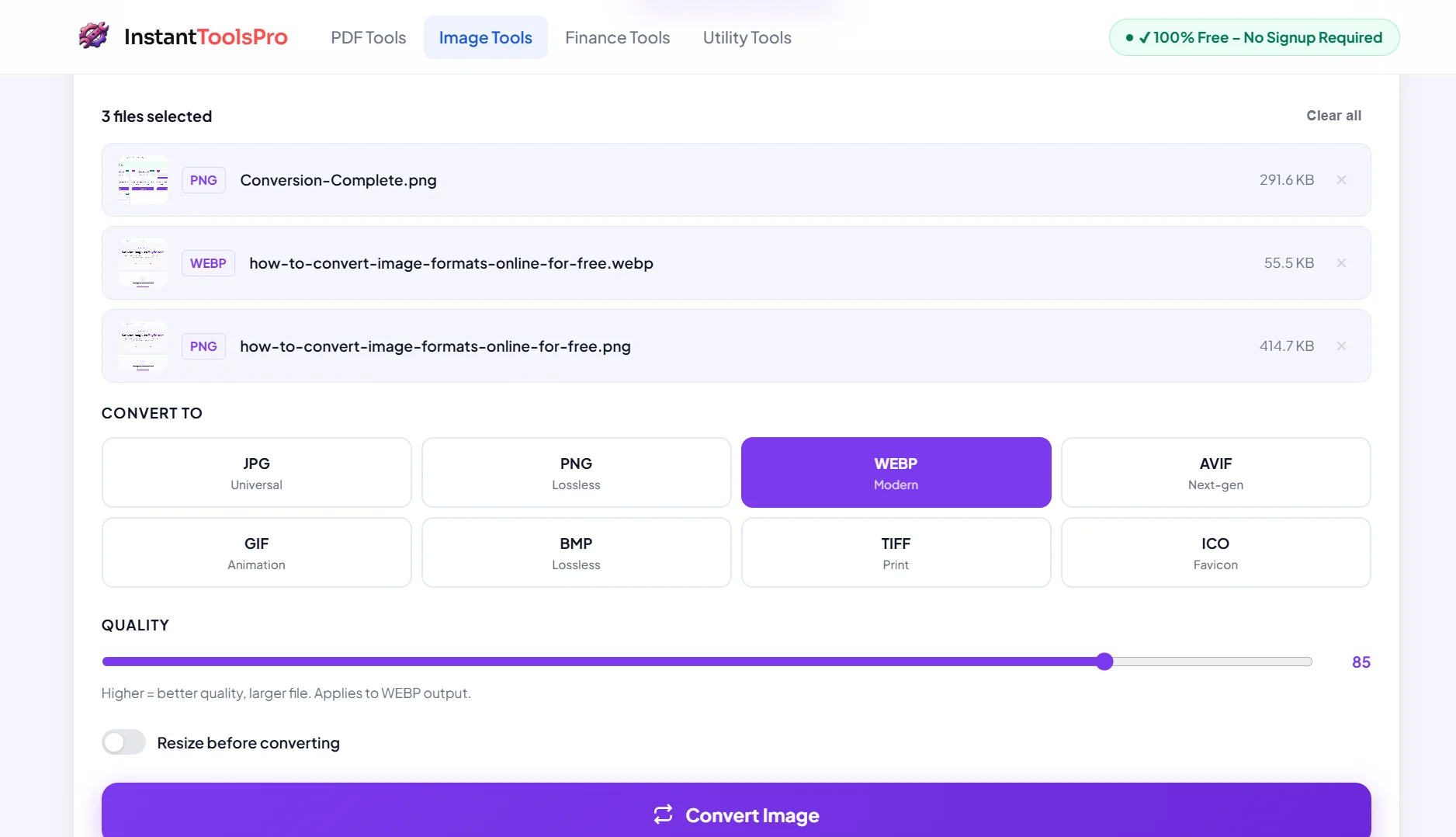
Select the format you want to convert to from the dropdown menu. Options include JPG, PNG, WebP, GIF, BMP, and TIFF. If you're unsure which to pick, WebP is the best all-around choice for web use.
Click "Convert Image"
The conversion process typically completes in 2–5 seconds. Our tool processes your image entirely on our server — your original file is never modified.
Download Your Converted Image
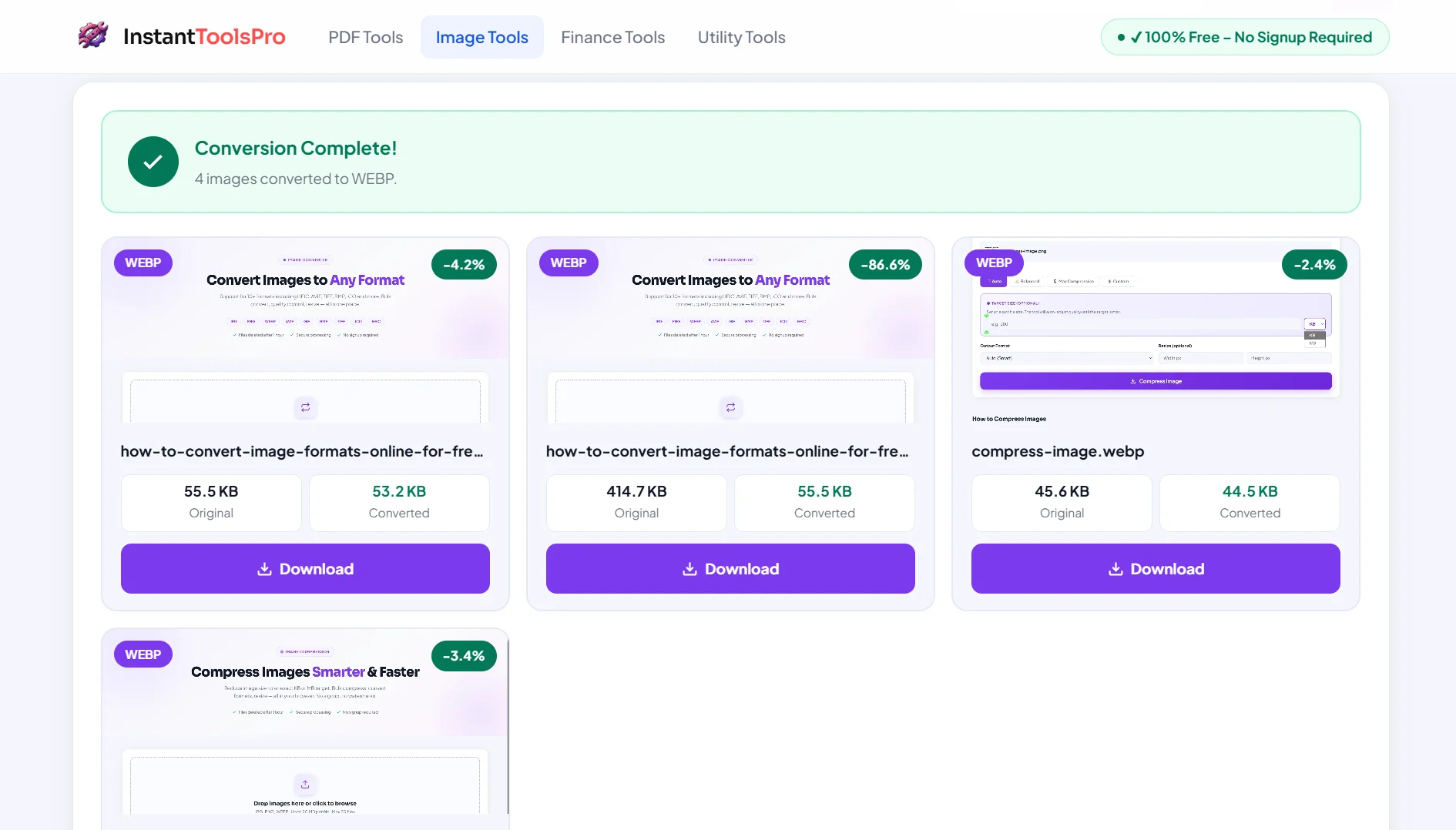
Click the download button to save your converted image. The original file remains unchanged — you always work from your original without risk.
All uploaded images are permanently deleted from our servers immediately after your download. We never store, view, or share your files under any circumstances.
Convert Any Image Format — Free
JPG, PNG, WebP, HEIC, GIF and more. No signup. No watermark. Instant.
Complete Image Format Guide — JPG, PNG, WebP & More
Understanding what each image format is designed for is the key to making the right conversion decision every time. Here's a comprehensive breakdown of every major format you'll encounter.
JPG (JPEG) — The Universal Photo Format
JPG has been the dominant format for photographs since the early 1990s and remains universally supported across every platform, device, and application on the planet. It uses lossy compression to achieve small file sizes, making it ideal for photographs with complex color gradients and smooth tonal transitions. At quality settings of 75–85%, JPG images look virtually identical to the original while being dramatically smaller in file size. The main limitation of JPG is that it does not support transparency — images always have a solid background — and repeated saves cause progressive quality degradation. JPG is the right choice for photographs, social media images, product shots, and any image that doesn't require transparency.
PNG — The Quality Standard for Graphics
PNG (Portable Network Graphics) uses lossless compression, meaning every pixel in the original is preserved exactly. This makes PNG the gold standard for logos, icons, screenshots, illustrations, and any image where sharp text, crisp edges, or flat colors need to remain perfect. PNG also supports full alpha transparency, allowing images to have transparent backgrounds — essential for logos and overlays. The trade-off is file size: PNG files for photographs are typically 3–8 times larger than equivalent JPG files. PNG should be your default for anything graphic-based that needs to stay sharp at any size. For photographs, PNG is almost always the wrong choice unless lossless preservation is genuinely required.
WebP — The Modern Web Standard
WebP was developed by Google specifically to replace both JPG and PNG on the web with a single, superior format. In lossy mode, WebP produces files 25–35% smaller than JPG at equivalent visual quality. In lossless mode, WebP produces files 20–30% smaller than PNG. It also supports transparency, animations (like GIF), and HDR color — making it the most versatile format available. All modern browsers — Chrome, Firefox, Safari 14+, and Edge — support WebP fully. If you're building or maintaining a website in 2024, converting your existing JPG and PNG assets to WebP is one of the highest-impact performance optimizations available. The only reason not to use WebP is backward compatibility with very old software or specific platform requirements that haven't updated their format support yet.
HEIC — Apple's High-Efficiency Format
HEIC (High-Efficiency Image Container) is the default photo format on iPhones running iOS 11 and later. It produces files roughly half the size of JPG at the same visual quality — impressive compression efficiency. The problem is compatibility: HEIC is not natively supported on Windows (without additional codecs), most Android devices, or the majority of web platforms and email clients. This makes HEIC-to-JPG conversion one of the most common image conversion tasks in everyday use. If you share photos from your iPhone to non-Apple users, converting to JPG or WebP first ensures universal compatibility without any issues.
GIF — The Animation Format
GIF (Graphics Interchange Format) is famous for supporting simple animations and was the dominant web animation format for decades. It supports transparency but is limited to a palette of only 256 colors, making it poor for photographs and complex graphics. For static images, GIF is almost never the right choice — PNG is superior in every way for static graphics. GIF remains relevant only for short, simple animations, though even here it's being replaced by WebP (which supports animations with better quality and smaller file sizes) and MP4 video (for longer or more complex animations).
BMP — The Uncompressed Windows Format
BMP (Bitmap) is an uncompressed raster format native to Windows. It stores every pixel without any compression, resulting in very large file sizes — a full-resolution BMP can easily be 10–50MB. BMP has no practical advantages over PNG for most use cases, but it occasionally appears in older Windows applications and software that only accepts BMP input. If you receive or need to work with BMP files, converting to PNG or JPG immediately reduces file size dramatically with no quality loss.
TIFF — The Print and Archive Standard
TIFF (Tagged Image File Format) is the professional standard for print production, medical imaging, and archival purposes. It supports lossless compression, multiple layers, and extremely high bit depths — making it the format of choice for professional photographers, designers, and print shops who need to preserve every detail of an image. TIFF files are very large and not suitable for web use. If a print service or professional workflow requires TIFF, you'll need to convert your JPG or PNG source files to TIFF before submission.
Most Common Image Conversions Explained
Certain conversion combinations are performed far more frequently than others. Here's exactly what happens — and what to expect — for each of the most common conversion scenarios.
JPG to PNG — Adding Transparency Support
Converting JPG to PNG is most commonly done when you need to add a transparent background to a photograph, or when you want to ensure a graphic is saved losslessly for future editing. It's important to understand that converting from JPG to PNG does not restore any quality that was lost during the original JPG compression — it simply places the JPG data into a lossless PNG container. The resulting PNG will be significantly larger than the JPG but will not degrade further if re-saved as PNG. This conversion makes sense when transparency is needed, but it's counterproductive if the goal is simply to improve image quality.
PNG to JPG — Reducing File Size for Photos
Converting PNG to JPG is one of the most effective size-reduction strategies for photographs that were accidentally saved as PNG. A 5MB photographic PNG converted to JPG at 80% quality will typically result in a 400–800KB file — a reduction of 85–90% — with virtually no visible quality difference. The caveat is that any transparency in the PNG will be filled with a solid background (usually white) in the JPG, since JPG does not support transparency. This conversion should be your default whenever you have photographic PNG files that don't require a transparent background.
JPG or PNG to WebP — Optimizing for Web Performance
Converting existing JPG or PNG images to WebP is the most impactful format conversion for website performance. JPG-to-WebP typically reduces file size by 25–40% with no visible quality loss. PNG-to-WebP in lossless mode reduces file size by 20–30% while preserving perfect quality and transparency. If you're running a WordPress site, e-commerce store, or any website with a significant number of images, converting your image library to WebP can substantially improve your Core Web Vitals scores and search rankings.
HEIC to JPG — Making iPhone Photos Universal
HEIC to JPG is the most common iPhone-related conversion. When you share iPhone photos with Windows users, upload them to most social media platforms, or send them via email to non-Apple recipients, converting to JPG first eliminates compatibility issues entirely. The conversion produces a high-quality JPG that looks identical to the HEIC original on any device. File sizes will be roughly double the HEIC size, but the universal compatibility makes it the right trade-off for sharing.
GIF to WebP — Replacing Animated GIFs
Animated GIFs are notoriously large files. A 10-second animated GIF that's 15MB can often be converted to animated WebP at under 3MB — an 80% reduction — with significantly better color quality since WebP isn't limited to 256 colors. If you manage a website that uses animated GIFs for visual interest, converting them to WebP is a high-priority optimization that dramatically reduces page weight and load times.
Does Converting Formats Reduce Quality?
This is one of the most common questions about image format conversion, and the answer depends entirely on which formats are involved in the conversion.
Converting between two lossless formats — such as PNG to WebP lossless, or PNG to TIFF — produces a mathematically identical result. Every pixel in the output matches the input exactly. There is no quality loss whatsoever in these conversions because lossless formats store complete, exact image data that can be transferred to another lossless container without any degradation.
Converting from a lossless format (PNG) to a lossy format (JPG or WebP lossy) will introduce some compression artifacts, because the target format works by discarding perceptually insignificant data. At quality settings of 80–90%, this difference is genuinely invisible to the human eye in normal viewing conditions. You would need to zoom in to 200% or more, or use a pixel-comparison tool, to detect any difference. At quality settings below 70%, compression artifacts become increasingly visible — particularly in areas with sharp edges, fine text, or subtle gradients.
The most important rule to understand is that converting from a lossy format (JPG) to a lossless format (PNG) does not improve quality. Quality lost during the original JPG compression is gone permanently — converting to PNG simply stores that already-degraded image in a lossless container, making the file larger without any quality benefit. Always work from the highest-quality source file available.
Never convert JPG to PNG expecting better quality. The original JPG compression loss is baked into the pixels permanently. Converting to PNG only increases file size — it cannot recover lost detail. Always keep your original source files and work from those.
Which Format Should You Use for Your Website?
For websites built in 2024 and beyond, the answer is almost always WebP as your primary format, with JPG as a fallback for older browsers. Here's the reasoning behind this recommendation.
WebP delivers the best combination of file size efficiency, visual quality, and feature support of any widely-supported format available today. Its lossy mode outperforms JPG for photographs. Its lossless mode outperforms PNG for graphics. It supports transparency, animations, and HDR color in a single format. And browser support now covers over 96% of global web traffic — including all versions of Chrome, Firefox, Edge, and Safari 14 and later.
For your hero images and large banner images — which are the most critical for Core Web Vitals performance — WebP compression at 80–85% quality typically produces files under 150KB that look identical to multi-megabyte originals. This single change can move your LCP score from "Needs Improvement" to "Good" on Google's PageSpeed Insights.
For product images in e-commerce, WebP at 75–80% quality typically produces files in the 40–80KB range that look sharp and professional on both desktop and mobile screens. At those file sizes, even a page with 20–30 product images remains fast-loading.
For logos and icons that require transparency, WebP in lossless mode is the ideal choice — smaller than PNG with identical quality. As a practical matter, SVG should be your first consideration for logos and icons because SVG is vector-based and looks sharp at any size with a tiny file size, but when raster formats are required, WebP is the best available option.
Convert Your Images to WebP Now
Faster pages, better SEO, smaller files — all in one free conversion.
Pro Tips for Image Format Conversion
Always convert from the original source file, never from a previously compressed version. If you need to convert a photograph to WebP, start from the original RAW or highest-quality JPG — not a version that's already been compressed several times. Each generation of lossy compression compounds the quality loss. Working from the original ensures the best possible output quality.
Match your quality setting to your use case. Images for print should be converted at maximum quality (95–100%) to preserve all detail. Images for web should be converted at 75–85% quality, which produces files that look identical in normal viewing while being substantially smaller. Images for internal use or quick sharing can use 60–70% quality — the file sizes are tiny and the quality is usually more than adequate for the purpose.
Resize before converting when preparing for web use. If your source image is 4000×3000 pixels and it displays at 800×600 on your website, resize it to 800×600 (or 1600×1200 for 2x retina display) before converting. Resizing reduces file size dramatically — often more than format conversion alone — and ensures your converted file is exactly the right dimensions for its intended use.
Use batch conversion for large image libraries. If you have hundreds of product images, blog photos, or gallery images that need converting, don't convert them one by one. Our image converter supports multiple files, and for very large libraries, consider a systematic approach — convert all images in a folder at once to maintain consistency in quality settings and format choices.
Keep your originals organized separately from converted versions. Store original source files in a dedicated "originals" folder and converted web-ready files in a separate "web" or "converted" folder. This ensures you always have a pristine original to reconvert if your requirements change — for example, if you later want to convert to AVIF for even better compression, or if a client needs TIFF files for print production.
Test converted images in their actual display context. An image that looks perfect when viewed in an image editor at 100% zoom may look noticeably different when scaled down to thumbnail size, or when displayed against a colored background. Always preview converted images in the actual context where they'll be used — on your website, in your email template, or in your presentation — before finalizing.
After converting your images, run them through our free Image Compressor for an additional 10–30% size reduction. Converting and then compressing gives you the best possible quality-to-size ratio for any use case.
Frequently Asked Questions
How do I convert an image format online for free?
Upload your image to InstantToolsPro's Image Converter, select your target format from the dropdown menu, and click Convert. Your converted image downloads instantly — no signup, no watermark, no software installation required. The entire process takes under 30 seconds.
What is the best image format for websites in 2024?
WebP is the best image format for websites in 2024. It produces files 25–35% smaller than JPG at the same visual quality, supports transparency like PNG, and is fully supported by all modern browsers including Chrome, Firefox, Safari 14+, and Edge. Converting your website's existing JPG and PNG images to WebP is one of the most effective performance optimizations available.
Does converting image formats reduce quality?
It depends on the conversion. Converting between two lossless formats (PNG to WebP lossless, PNG to TIFF) has absolutely zero quality loss — the output is pixel-perfect. Converting from a lossless format (PNG) to a lossy format (JPG or WebP lossy) causes a small, usually invisible reduction in quality at normal viewing sizes. Converting from one lossy format to another (JPG to WebP) recompresses already-compressed data, which can compound artifacts — always work from the original source file when possible.
Can I convert HEIC to JPG online for free?
Yes. InstantToolsPro supports HEIC to JPG conversion directly in your browser — no app download needed. Upload your HEIC file from your iPhone, select JPG as the output format, and download your converted image instantly. This is the fastest way to make iPhone photos compatible with Windows, Android, and web platforms.
What is the difference between JPG and PNG?
JPG uses lossy compression and is best for photographs — smaller file sizes, universal compatibility, but no transparency support and quality degrades slightly with each re-save. PNG uses lossless compression and is best for logos, icons, screenshots, and graphics where sharpness is critical. PNG supports full transparency and preserves every pixel exactly, but produces much larger files for photographic content. For web use, consider WebP as a superior alternative to both.
How long does image conversion take?
Most conversions complete in 2–5 seconds. Even large files up to 10MB typically convert in under 10 seconds. There are no queues or wait times — your image is processed immediately after upload on our fast servers.
Can I convert multiple images at once?
Yes. Our image converter supports batch conversion — you can upload and convert multiple images simultaneously, saving significant time when working with large sets of files. All converted images can be downloaded individually or as a single ZIP file.
Is it safe to convert images online?
Completely safe. All uploaded images are processed in a secure, temporary environment and automatically deleted from our servers the moment your download is complete. We never store, view, or share your files. Your images are private and handled with complete confidentiality.
Convert Your Images Right Now
Free, instant, secure. JPG, PNG, WebP, HEIC and more. No signup required.