
Received a PDF with a blank page stuck in the middle? Need to strip out a confidential page before sharing a report? Or maybe you want to delete a cover page before merging files? Whatever the reason, removing pages from a PDF sounds simple — but most people don't know how to do it without paying for expensive software. In this guide, you'll learn exactly how to remove pages from any PDF online for free, in seconds, on any device.
Why Remove Pages from a PDF?
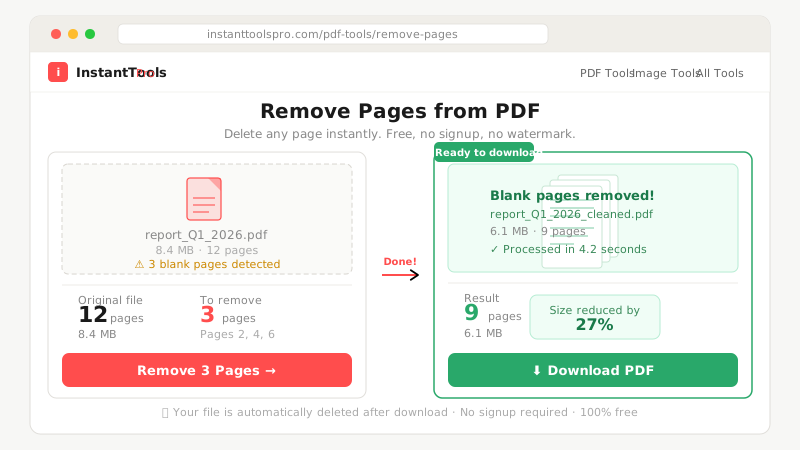
PDFs arrive in all kinds of imperfect shapes. A vendor sends a 12-page invoice where pages 6 through 9 are blank. A scanned contract has a duplicate page. A downloaded report has a cover page you don't want in the merged file. These are everyday problems, and "remove pages" is the everyday solution.
The most common reason is eliminating blank or placeholder pages. Many word processors and PDF exporters add extra blank pages at the end of sections to maintain even page counts for printing. These blank pages serve no purpose in a digital PDF and bloat the file unnecessarily. Removing them keeps your document clean and professional.
Confidentiality and privacy is another major reason. When sharing a report or proposal, certain pages may contain internal pricing, personal data, or sensitive commentary not meant for the recipient. Removing those specific pages before sending is safer and faster than trying to redact content — especially since visible redaction in PDFs can sometimes be reversed by determined recipients.
People also remove pages when restructuring or merging documents. If you're building a master PDF from multiple source files, each source usually has its own cover page, terms page, or appendix that you don't want duplicated in the final document. Stripping those out before merging gives you a clean, professional result.
Finally, removing pages directly reduces file size. Every page deleted — especially image-heavy or scanned pages — shrinks the total file. Combined with compression afterward, this is one of the most effective ways to get a PDF under a submission portal's size limit without sacrificing any content you actually need.
Step-by-Step: Remove PDF Pages Online for Free
Using InstantToolsPro's free Remove Pages tool is the quickest way to delete any page — or multiple pages — from a PDF without software, without signing up, and without adding any watermark. Here's exactly how to do it:
Open the Remove Pages Tool
Visit instanttoolspro.com/pdf-tools/remove-pages. No account or login is needed — the tool is completely free and works directly in your browser on any device.
Upload Your PDF
Click "Select PDF" or drag and drop your file onto the upload area. Files up to 100MB are supported. Your upload is protected by secure HTTPS encryption from the moment you select your file.
Select the Pages to Delete
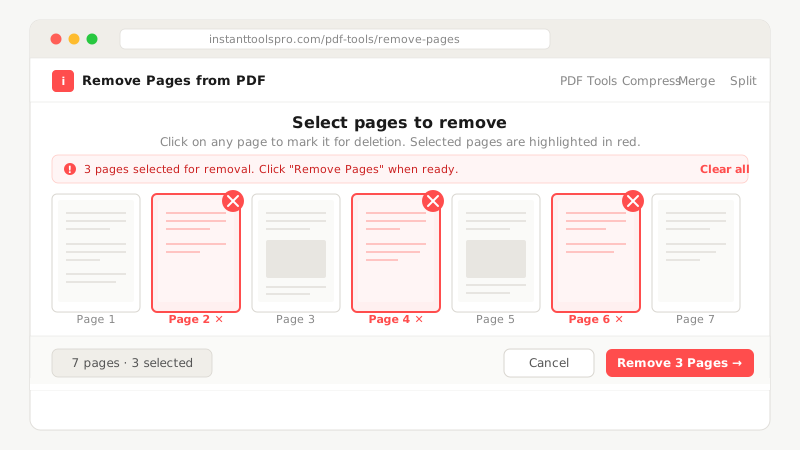
After uploading, a visual thumbnail grid of every page in your PDF is displayed. Click any page thumbnail to mark it for deletion — it will be highlighted. You can select a single page, several non-consecutive pages, or an entire range all at once.
Click "Remove Pages"
Once you've selected all the pages to delete, click the button. The tool processes your PDF in seconds and generates a clean new file containing only the pages you kept.
Download Your Updated PDF
Your trimmed PDF is ready to download instantly — no email required, no queue, no account. Every remaining page retains its original quality, formatting, links, and layout perfectly.
Your files are automatically deleted from our servers the moment you download your result. We never store, index, or share your uploaded documents.
Remove Pages from Your PDF — Free
No signup. No watermark. No software. Delete any page in seconds.
What Types of Pages Can You Delete?
The Remove Pages tool handles every kind of PDF page — regardless of how the document was originally created or what content it contains.
Blank and Empty Pages
Blank pages are the most commonly removed page type. They appear in PDFs exported from Word or LibreOffice when a section break falls at the end of an odd-numbered page, creating an unwanted filler page before the next chapter. They also appear in scanned documents when the scanner accidentally captures an empty sheet. Removing them is instant — just click the blank thumbnail in the grid and delete.
Cover Pages and Title Pages
When merging multiple PDFs together, each source document usually comes with its own cover page. Before merging, strip out these individual cover pages so the combined document has a single, unified cover. The visual thumbnail preview makes it easy to identify and select exactly the right page without any guesswork.
Duplicate Pages
Scanned documents and merged PDFs frequently contain duplicate pages — identical content appearing twice because of a scanning error or a merge overlap. The thumbnail grid lets you spot duplicates at a glance and remove them in a single click, leaving a clean, non-repetitive document.
Confidential or Sensitive Pages
Internal pricing sheets, personal data appendices, draft commentary pages, and signature-only pages are all common examples of content you may need to remove before sharing a PDF externally. Deleting the entire page is far more reliable than trying to redact text — partial redactions in PDFs can sometimes be bypassed in certain PDF viewers, exposing the underlying content.
Scanned Pages in Image-Based PDFs
Scanned PDFs are fully supported. Even though each page is stored as an embedded image rather than selectable text, the tool recognizes every page individually and lets you remove any of them without affecting the remaining pages in the slightest.
Remove Pages vs. Split PDF: Which to Use?
People often confuse "Remove Pages" with "Split PDF" — both tools modify which pages end up in your final file, but they work very differently and solve different problems.
Remove Pages is the right choice when you want to keep most of the document and delete a few specific pages from it. You start with the full PDF and subtract only what you don't want. The output is one single PDF containing everything except the removed pages. This is perfect for deleting blank pages, stripping a confidential page, or cutting a duplicate — any situation where the majority of the document stays intact.
Split PDF is the right choice when you want to break the document into multiple separate files. You start with one PDF and divide it into two or more independent PDFs — by page range, at every page, or at specific breakpoints you define. This is ideal for extracting a specific chapter, separating a batch invoice file into individual invoices, or creating standalone handouts from a multi-section presentation.
The quickest decision rule: if your goal is one cleaner PDF with some pages removed, use Remove Pages. If your goal is multiple separate PDF files from one source document, use our Split PDF tool.
Need to extract just a few pages as a standalone document? That's a Split operation — open the Split PDF tool, set the page range you want to extract, and download just those pages as a new, separate PDF file.
Other Ways to Remove Pages from a PDF
Several desktop applications and software tools can also remove PDF pages. Each comes with meaningful trade-offs that are worth knowing before you choose your approach.
Adobe Acrobat Pro is the most powerful desktop option available. In the "Organize Pages" panel, every page of your PDF is shown as a thumbnail — select any of them and press Delete. It supports advanced operations like rotating, reordering, replacing, and extracting pages as well. The catch is cost: Acrobat Pro requires a paid subscription at around $19.99 per month, which is difficult to justify for occasional page deletion tasks.
Adobe Acrobat Reader (free version) does not support page deletion at all. Despite being the world's most widely installed PDF application, the free Reader is strictly a viewer and annotator — it cannot remove, add, or rearrange pages. Many users discover this limitation only after spending time trying to find the option.
macOS Preview is a surprisingly capable free option for Mac users. Open your PDF in Preview, enable the Thumbnails sidebar via View → Thumbnails, select the pages you want to remove, and press the Delete key. It works reliably for simple PDFs, but can occasionally strip out bookmarks, internal links, and form field data from more complex documents during the save process.
Microsoft Word can open PDFs and allows content editing before re-exporting as a PDF. However, Word's PDF import engine frequently mishandles complex layouts — multi-column text reformats, tables shift, and embedded images move out of position. For anything beyond a plain single-column text document, Word is an unreliable choice for precise page manipulation.
LibreOffice Draw is a free desktop alternative to Acrobat that can open PDFs, delete pages, and re-export. It handles simple PDFs better than Word in most cases, but the same layout-distortion risks apply for documents with complex formatting, tables, or advanced PDF features.
For most users — especially those on Windows, mobile, or without a paid Acrobat subscription — an online tool is the fastest and most reliable approach, with zero risk of layout corruption and no installation required.
Pro Tips for Removing PDF Pages Correctly
Always verify page selection before clicking Remove. The visual thumbnail grid is there for a reason — scroll through your entire selection before confirming. Accidentally deleting the wrong page and re-downloading wastes time. If you're unsure about a page, open the original PDF side-by-side in another tab and cross-reference the content before committing.
Remove pages before merging, not after. If your workflow involves combining multiple PDF files into one master document, clean up each individual file first — strip unwanted cover pages, blank pages, and appendices — and then use our PDF Merge tool to join the polished versions. Trying to navigate and remove pages from an already-merged 80-page document is far harder and more error-prone.
Compress immediately after removing pages. Deleting pages reduces file size, but the PDF's internal structure retains some overhead data from the removed content. Running the trimmed file through our PDF Compressor right afterward eliminates that overhead and delivers the smallest possible clean file.
Renumber pages after removing them from the middle. If your document had page numbers embedded in its content — either as printed text or as a running footer — and you remove pages from the middle, the numbering will have visible gaps (for example, the document jumps from page 7 to page 11). After removing pages, use our Add Page Numbers tool to apply fresh consecutive numbering across the updated document.
Always verify sensitive content is gone before sharing. After removing a confidential page, open the downloaded PDF on your device and scroll through every remaining page to confirm the sensitive content is truly absent. This takes thirty seconds and prevents the embarrassment of accidentally sharing information you intended to delete.
Use range input for large documents. If your PDF has 150 pages and you want to remove pages 40 through 65, clicking each thumbnail individually is tedious. Use the page range input field in the tool — type "40-65" to instantly highlight all those pages for deletion in one step, then confirm and remove.
Delete Any PDF Page Right Now — It's Free
No account needed. No watermark. Works on Windows, Mac, iOS and Android.
Frequently Asked Questions
Can I remove pages from a PDF for free?
Yes — completely free. InstantToolsPro's Remove Pages tool has no cost, requires no account, and adds no watermark to your output. You can use it as many times as you need without any restrictions.
Can I delete multiple pages at once?
Yes. You can select and remove any number of pages in a single operation — whether consecutive pages like 3, 4, and 5, or scattered individual pages like 1, 7, and 12. All selected pages are removed together and your updated PDF is ready in one download.
Will removing pages damage the rest of my PDF?
No. Only the pages you specifically select are removed. Every remaining page keeps its original content, formatting, fonts, images, clickable links, and layout exactly as it was. The tool makes a precise surgical removal of only what you marked — nothing else is touched.
Can I undo a page removal after downloading?
Once you've downloaded the trimmed PDF, there is no undo option within the tool itself — the processing is complete. However, your original uploaded file on your own device is never modified, so you can always re-upload the original PDF and start the selection over. Keep your original file until you've confirmed the trimmed version looks exactly right.
Can I remove pages from a password-protected PDF?
No. Password-protected and encrypted PDFs cannot be processed directly because the tool cannot access the content inside to modify it. You'll need to remove the password protection first using the document's owner password, then upload the unlocked version to remove pages from it.
Can I remove pages from a scanned PDF?
Yes — scanned PDFs are fully supported. Even though each page is stored as an embedded image, the tool treats every page individually and lets you delete any of them without affecting the remaining scanned pages in any way.
What is the maximum file size supported?
The tool supports PDF files up to 100MB. For documents larger than this, use our PDF Splitter to divide the document into smaller sections first, remove pages from each section as needed, then rejoin everything using our PDF Merge tool.
Does removing pages reduce the file size?
Yes — every page deleted reduces the total file size, especially for image-heavy pages and scanned content. For the maximum possible size reduction, follow up by running your trimmed PDF through our PDF Compressor, which cleans up any residual internal overhead left behind by the removed pages.
Ready to Clean Up Your PDF?
Free, instant, secure — no signup required. Works on all devices.