
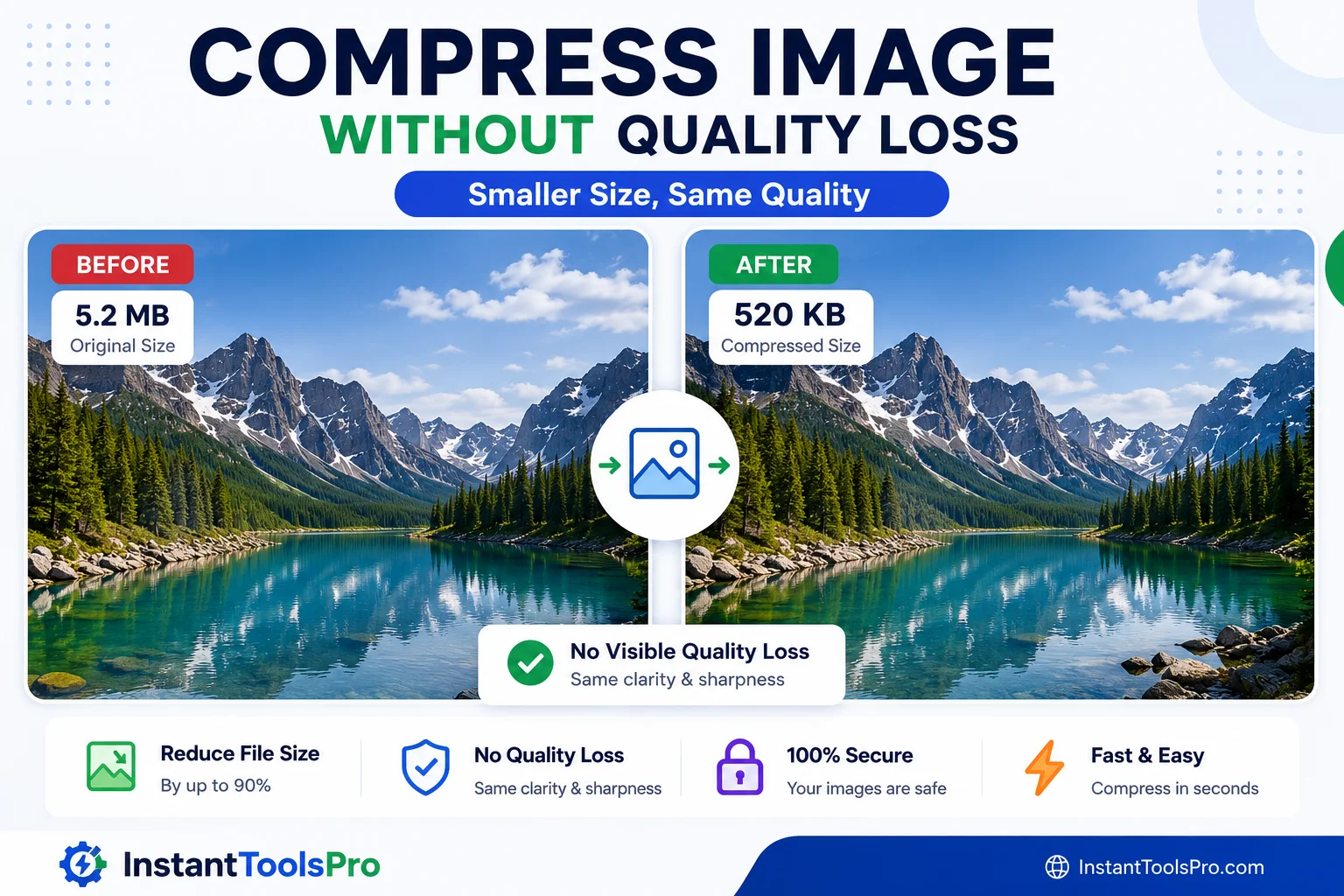
A bloated PDF slows everything down — it bounces back from email servers, takes forever to upload, and frustrates the person on the other end. But compressing a PDF the wrong way destroys the quality of your images and makes your document look pixelated and unprofessional. In this guide, you'll learn exactly how to compress any PDF without losing quality — completely free, in under 30 seconds, with no software to install.
Why Compress a PDF File?
File size matters more than most people realize. A 40MB PDF won't make it past Gmail's 25MB attachment limit. A 15MB report takes forever to open on a mobile connection. Clients and colleagues often don't say anything — they just struggle in silence. Compressing your PDF solves all of this instantly.
The most immediate reason to compress a PDF is to send it via email. Most email providers cap attachments at 25MB (Gmail, Outlook) or even 10MB. A single uncompressed scanned document or a presentation exported from PowerPoint can easily exceed these limits. Compression brings it down to a fraction of the original size, well within any limit.
Compressed PDFs also upload and download faster. Whether you're sharing a document through WhatsApp, uploading to a client portal, or attaching it to a government form submission, a smaller file just works better — especially for recipients on slow mobile connections.
Storage is another practical reason. If you manage hundreds of PDF reports, invoices, or contracts, a 70% file size reduction translates directly into less cloud storage cost and faster search performance across your document library.
Finally, many online submission portals — university application systems, government departments, court filing systems — enforce strict file size limits, often as low as 2MB or 5MB. Compression is the only way to meet those requirements without stripping out your content.
Step-by-Step: Compress PDF Online for Free
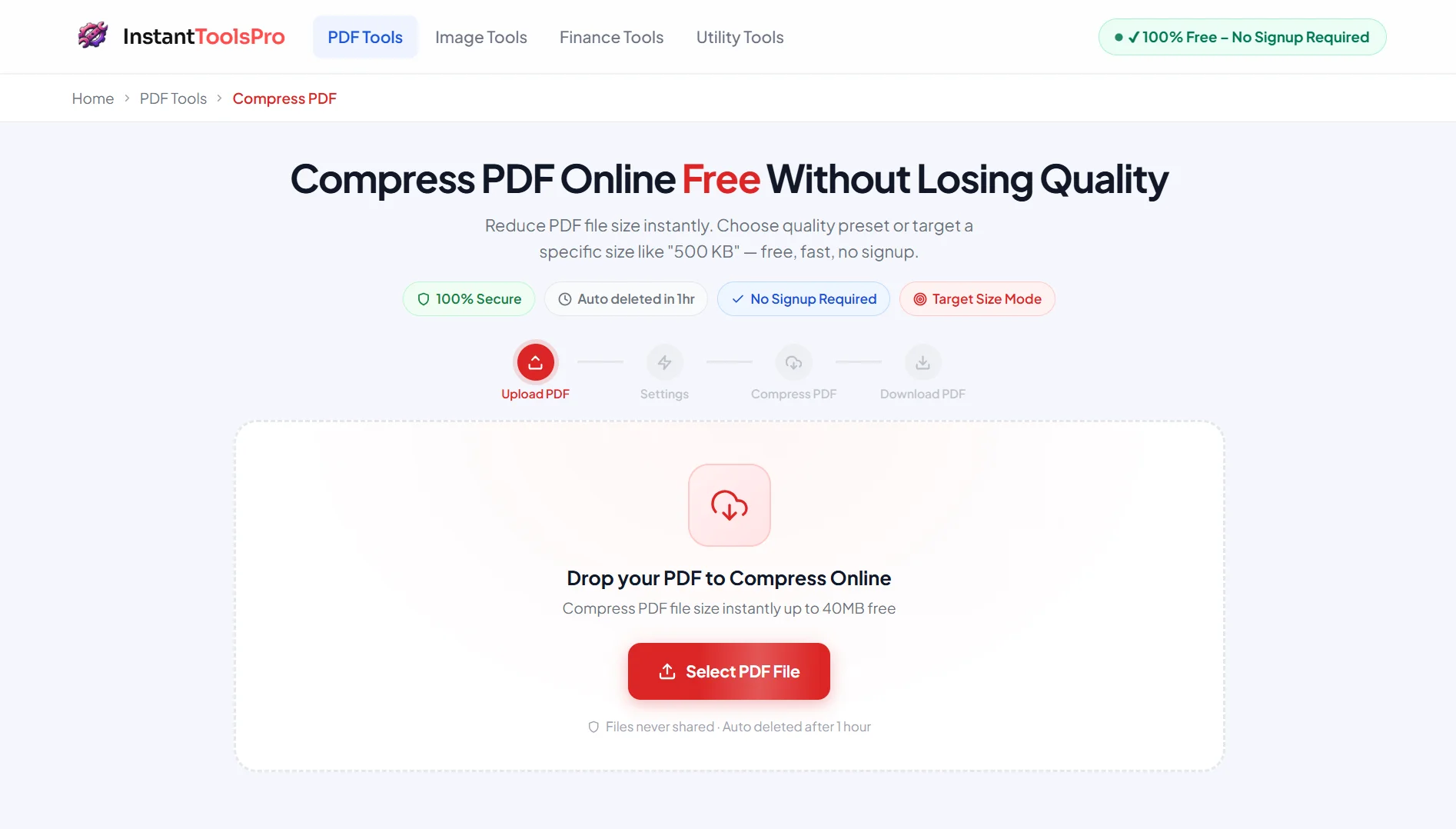
Using InstantToolsPro's free PDF Compressor is the fastest and simplest way to shrink any PDF — no account needed, no software to install, and absolutely no watermark added to your file. Here's how to do it in under a minute:
Open the PDF Compressor Tool
Go to instanttoolspro.com/pdf-tools/compress. No login or signup is required — the tool is free and open to everyone.
Upload Your PDF File
Click "Select PDF" or drag and drop your file into the upload zone. Files up to 100MB are supported. Your PDF is uploaded over a secure encrypted connection.
Choose a Compression Level
Select from three levels — Low (best quality, modest size reduction), Medium (recommended for most documents), or High (maximum compression for the smallest possible file). Medium is the right choice for 90% of use cases.
Click "Compress PDF"
Hit the button and the tool will process your PDF in seconds. You'll see the original file size and the compressed file size displayed side by side so you can see exactly how much was saved.
Download Your Compressed PDF
Click the download button to save your smaller, optimized PDF instantly. No email required, no waiting, no account needed.
Your files are automatically deleted from our servers the moment you download. We never store, read, or share your uploaded documents — ever.
Compress Your PDF Now — Free
No signup. No watermark. No software. Reduce PDF size by up to 90% instantly.
Understanding Compression Levels
Not every PDF needs maximum compression. Choosing the right compression level for your specific use case is the key to getting a small file and great quality at the same time.
Low Compression — Best Quality
Low compression applies minimal optimization — stripping out embedded metadata, redundant data streams, and invisible objects that accumulate inside PDFs over time. The result is typically a 10–30% file size reduction with absolutely zero visible quality change. This level is ideal for PDFs that will be printed professionally, used in legal submissions where every pixel matters, or archived as master copies.
Medium Compression — Recommended for Most Uses
Medium compression goes further by optimizing embedded images using smart resampling while keeping them at a visually indistinguishable quality. You'll typically see a 40–70% file size reduction — enough to email any document easily. Text remains razor-sharp and images look identical at normal viewing zoom. This is the right setting for reports, proposals, academic submissions, and everyday business documents.
High Compression — Smallest Possible File
High compression aggressively reduces image resolution and applies maximum optimization to every element of the PDF. File sizes can shrink by 70–90%, making this the go-to option when you must hit a strict file size limit — like a 2MB government portal upload. Text is always preserved perfectly, but high-resolution images may appear slightly softer when zoomed in closely. For standard reading on screen or printing at A4 size, the quality difference is barely noticeable.
What Makes a PDF File So Large?
Understanding what bloats a PDF helps you make smarter decisions about compression — and sometimes avoid the problem in the first place.
Embedded images are the biggest culprit by far. A single high-resolution photograph embedded in a PDF can be 3–5MB on its own. A presentation with 20 slides, each containing a full-HD image, can easily balloon to 50MB or more — even though the content would fit in a much smaller file if the images were optimized before embedding.
Scanned documents are the second major source of large PDF files. When you scan a paper document at 300 DPI or higher, each page becomes a large image file. A 20-page scanned report at 300 DPI can be 15–25MB depending on content density and scanner settings. Compression reduces this dramatically since most of that data is redundant white space.
Embedded fonts add size too. PDF files embed the fonts they use so the document looks identical on any device. Fonts with large character sets — like those supporting multiple languages or special characters — can add 1–3MB per font. Documents using five or six custom fonts accumulate significant hidden font data.
Metadata and revision history quietly inflate PDFs that have been edited multiple times. Every time you save changes in Adobe Acrobat, the old version of the page is retained as revision data. After dozens of edits, this revision history can account for 20–30% of total file size without contributing anything visible to the reader.
Quality vs. File Size: Finding the Balance
The goal of PDF compression is never to make the file as small as possible — it's to make it as small as needed while keeping quality high enough for its purpose. Different documents have different quality requirements.
A legal contract contains almost no images — just text and perhaps a few signatures. Compressing it aggressively will have essentially zero visual impact because there are no images to degrade. You can safely use High compression without any concern about quality.
A photography portfolio is the opposite extreme. Every page is a high-resolution image where quality is the entire point. For documents like this, use Low compression to preserve as much image fidelity as possible — or compress the images in a photo editor before embedding them in the PDF.
A business report sits in the middle — charts, graphs, logos, and photos alongside text. Medium compression is perfect here: text stays crisp, charts and graphs remain clearly readable, and photos look good at normal viewing size, while the file drops from 15MB to 3–5MB.
The practical rule of thumb is simple: use Medium for almost everything, drop to Low only for print-quality masters, and use High only when you must hit a specific file size limit.
Always open your compressed PDF and view it at 100% zoom before sending. If images look sharp and text is crisp, your compression level is exactly right. If you notice softness in photos, step down one compression level and try again.
Other Ways to Compress a PDF
There are several approaches to PDF compression beyond using an online tool. Each has meaningful trade-offs worth understanding before you choose.
Adobe Acrobat Pro offers the most control of any desktop application. You can apply advanced PDF Optimizer settings, control compression per image type (color, grayscale, monochrome), downsample fonts, and remove specific data streams. The output quality is excellent. The major drawback is cost — Acrobat Pro costs around $19.99 per month, which is hard to justify if you only compress PDFs occasionally.
Acrobat Reader (free version) cannot compress PDFs. Despite being the world's most installed PDF viewer, the free Reader does not include any file optimization feature — a frustrating limitation that catches many users off guard.
Microsoft Word can reduce PDF size if you open the PDF in Word, then re-export it as a PDF with the "Minimum size" optimization option. The results vary — text-only PDFs compress well, but complex layouts with multiple columns, tables, and embedded images often shift or break during the Word conversion process, leaving you with a smaller but damaged document.
macOS Preview has a "Reduce File Size" Quartz filter built in (File → Export as PDF → Quartz Filter). It works, but it's notorious for applying too much compression and producing noticeably degraded results — especially for photos. It's a last resort, not a first choice for Mac users.
Ghostscript is a powerful free command-line tool used internally by many PDF compression services. It produces excellent results but requires technical comfort with terminal commands and installation — not practical for everyday users.
For the vast majority of people, an online tool like InstantToolsPro is the clear winner: free, instant, no installation, works on any device and operating system, and produces professional-quality results in seconds.
Pro Tips for Smaller PDF Files
Compress at the source, not just the output. If you're creating a PDF from a Word document, PowerPoint presentation, or design tool, use the "minimum size" or "web optimized" export setting before you even upload to a compressor. Starting smaller means the final compressed file will be even leaner.
Optimize images before embedding them. If you know your PDF will contain many photos, resize and compress those images in a tool like Squoosh or TinyPNG before adding them to your document. Embedding a 300KB image is always better than embedding a 3MB image and hoping the compressor catches it later.
Split large documents before compressing. For PDFs over 100MB, use our PDF Splitter to divide the document into smaller chunks, compress each one separately, then merge them back together. This approach lets you apply different compression levels to different sections — maximum compression on image-heavy chapters, low compression on text-only sections.
Remove unnecessary pages first. If your PDF contains blank pages, duplicate pages, or placeholder pages, delete them using our Remove Pages tool before compressing. Fewer pages always means a smaller file, and the compressor works more efficiently on clean content.
Check if your PDF is already optimized. Some PDFs are already compressed when you receive them — especially those generated by professional design software like InDesign or Illustrator with web export settings. If a 5-page PDF is already only 800KB, running it through a compressor again won't help much and may actually degrade image quality slightly.
Use the right format for the right purpose. If your "PDF" is really just a single-page image or a form screenshot, consider whether a high-quality JPEG or PNG might actually serve better for that specific use case. Sometimes the best way to get a smaller PDF is to reconsider whether a PDF is needed at all for that particular document.
Shrink Your PDF Right Now — It's Free
No account needed. Up to 90% smaller. Quality preserved. Works on any device.
Frequently Asked Questions
Can I compress a PDF for free without losing quality?
Yes — completely free. InstantToolsPro's PDF compressor costs nothing, requires no account, and adds no watermark. The Medium compression level delivers dramatically smaller files with visually indistinguishable quality for the vast majority of documents.
How much can I reduce a PDF's file size?
Results vary based on what's inside your PDF. Image-heavy PDFs — especially scanned documents and presentation exports — typically compress by 60–90%. Text-heavy PDFs with minimal images usually compress by 15–40%. You'll see the exact before-and-after file sizes displayed after compression so you always know what you've saved.
Will compressing a PDF make the text blurry?
No. Text in PDFs is stored as vector data, not as images, which means it scales and compresses without any quality loss. Text will always be perfectly sharp and readable at any zoom level, regardless of compression level. Only embedded images are affected by compression settings.
Can I compress a password-protected PDF?
No — encrypted or password-protected PDFs cannot be compressed directly because the tool cannot access the content to optimize it. You'll need to remove the password protection first (with the owner password), then run the compression, and optionally re-apply protection afterward.
Why is my PDF still large after compression?
If your PDF barely shrank, it's likely because the file was already heavily compressed before you uploaded it. Some PDF generators (like modern versions of Microsoft Word or Google Docs) export with aggressive built-in compression. Running a second compression pass on an already-optimized file has diminishing returns. Another possibility is that the file contains very large vector graphics, which compress differently from images.
Can I compress a scanned PDF?
Yes, and scanned PDFs benefit the most from compression. Since every page is essentially a large image, our tool can dramatically reduce the file size while keeping the document clearly readable. A 20-page scanned document that starts at 20MB can often be reduced to 2–4MB at Medium quality — still fully legible and printable.
Is there a file size limit for the PDF compressor?
Our free compressor supports files up to 100MB. If your PDF is larger than that, use our PDF Splitter to break it into smaller sections first, compress each section, then rejoin them with our PDF Merge tool.
Does compressing a PDF reduce the number of pages?
No. Compression only reduces file size — it never removes, rearranges, or alters the pages themselves. Every page remains intact, in the same order, with the same content. If you need to remove pages, use our dedicated Remove Pages tool instead.
Ready to Compress Your PDF?
Free, instant, secure — no signup required. Works on Windows, Mac, iOS and Android.